


After purchasing an ARK: Survival Ascended server, it can be confusing to join with friends. Unlike its predecessor, the new sequel requires you to do this in-game without any IP address. This means there’s another method to join, involving searching through lists. All that’s needed is the server name, which means you must create one before joining. Fortunately, the process to do this is extremely simple and straightforward since our panel is optimized for the best hosting experience. Once connected, you and others alike can leap into a wild adventure full of dinosaurs and the chance to conquer the world! However, newcomers to the scene may be unfamiliar with our system or want extra support when trying to connect. With this in mind, we’ve created this Apex Hosting guide that shows you how to join an ARK: SA server to begin playing with friends.
Finding the Server Name
Locating the name of your ARK: SA server is the first step before anyone can join. Remember, this information is required since players will be looking it up in-game. Our easy-to-use panel provides you with that and the ability to customize it, even on mobile devices. We’ll walk you through the steps to achieve this, but make sure you save the name for later.
- Head towards your Apex server panel, then click
Customizationson the left.
- Locate the
Server Nameoption, then change its text to anything you want.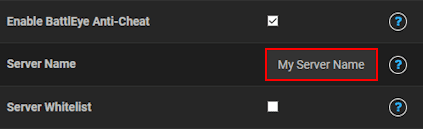
- Afterward, return to the main panel and click the
Restartbutton to apply these changes.
Joining an ARK: SA Server
Once you’ve located the server name, then you can begin looking for it in ARK: Survival Ascended. Remember, this is required for you to join the world since there’s an in-game list to find communities. If you’ve forgotten the server name, then consider reviewing it on the panel. Luckily, joining isn’t too complicated and won’t pose a problem. When you’re ready, follow the steps below.
- Launch ARK: Survival Ascended, then select the
Join Gameoption in the menu. - Proceed to click the
Unofficialcategory and enter your server name in the search bar.
- Once the list refreshes, find and select your server.
- Afterward, press the
Joinbutton at the bottom right to begin connecting.
Note: Servers with mods redirect you to another prompt, but works the same.
ARK: Survival Ascended Gameplay

Joining ARK: SA servers are extremely easy and simple to do, only once you get the hang of it. While in-game, players will experience a wide variety of challenges. Surviving in these harsh conditions is more amusing with friends, so invite some for the best results. Otherwise, continue collecting resources, crafting equipment, building bases, and upgrading your character stats to dominate the world. Due to you being the server administrator, you have the ability to enable cheats. This provides you with advantages that others don’t have, such as creative mode. Whether you want to play legit or experiment with cheats, your ARK: Survival Ascended dedicated server is yours to enjoy!
Frequently Asked Questions
The Unofficial server list can take a little bit of time to update properly, so make sure to refresh frequently. Otherwise, this could be an indication that your server is offline or has another name.
Occasionally, server restarts might not apply recent changes. We advise you to click Stop from the main panel, then rename accordingly and try to load it again. In cases where this situation continues to occur, consider reaching out to our Support Team.
Yes, mods are necessary to join modded servers. However, this is done automatically when pressing the Join button confirming the connection. Wait a few minutes for this to complete and you’ll be in-game with mods.
Unfortunately, this is a known issue which affects some players. If this happens to you, the following workaround is available:
- Start the game and go to Settings > Advanced.
- Enable Console Access.
- Exit menu.
- Open the console (~ on PC; menu/options button on Xbox/PS5).
- Type and run: Ark.UseServerList 0
- Check the server list again.
- If this doesn’t work, connect directly by typing in the console: open IP:PORT (Example: open 123.456.789:12345)
Note: You must make sure no server password is set for this to work properly.





















