


Overview
Hosting an ARK: Survival Evolved server can be a wonderful way to have fun with your friends, but some issues can arise during gameplay sessions. An extremely common problem is corruption, which makes your save files unusable. This may frustrate owners and players alike since no one can play or resume their game. In some cases, the server was griefed by users or someone abused an exploit to ruin the fun. Regardless of the cause, solving these situations is done through restoring the save files. This is easily done through our panel, as you’re provided with two simple methods for doing it. Although, it can still be tricky to start the process for server owners, especially newcomers. With this in mind, we’ve created this Apex Hosting tutorial to show you how to roll back and restore an ARK server.
Manual Method

The first method is the best to use, as it’s using previous game backups the server made. Unfortunately, it’s a bit technical due to managing your save files. For instance, you’ll have to keep track of names and timestamps to ensure the restoration is successful. Despite the possible challenges, we’ve broken it down into two subsections with easy steps to follow down below. However, if you’re worried about losing all data, then you can download the files onto your computer before proceeding.
Accessing Save Files
Before doing anything, you’ll want to keep note of your world’s name since this is an important part of the process. It’s typically the Server Map you’ve selected to play on, making it easier to remember. Additionally, you’ll be using the File Transfer Protocol (FTP) system in the panel, as this area stores all the server files. When you’re ready, follow these instructions to learn how to access the save files.
- Head towards your Apex server panel, then click
FTP File Accessnear the top left.
Important: Ensure you’re using the correct Server Profile for this process.
- Proceed to login with your password, then locate and enter the
ShooterGamefolder.
- Once there, continue to the following directory:
…/Saved/SavedArks - Confirm you have [worldname].ark and [worldname].[time].ark files.

- Keep this window open for the restoration process.
Restoring Saves
After you’ve found your save files, it’s time to prepare them for the restoration process. This only involves renaming them, then restarting the server to apply the changes. Additionally, this is the most crucial part to roll back your servers, so carefully review the steps below to begin.
- Inside of the
SavedArksarea, checkmark the [worldname].ark file and pressRename.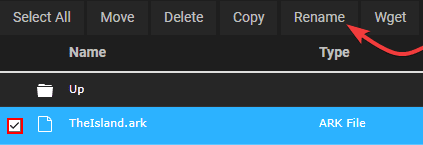
- Continue to edit its filetype from “.ark” to “.ark.backup”.

- Continue to
Submitthis change and return to theSavedArksfolder. - Locate your desired [worldname].[time].ark file to use for the restoration.
Note: Use the time values as reference when choosing the file. - Checkmark and
Renameit to “[worldname].ark”, keeping its same worldname value.
Submitthe edit and return to the main panel, thenRestartthe server to finish.
If you’ve previously downloaded your
[worldname].arkfile, then delete the current one in the server. Afterward, simplyUploadyour saved version in theSavedArksdirectory to replace the removed one. When this is done,Restartthe server to apply the changes. However, make sure the file names are the same when doing this process so there aren’t any problems.
Automatic Method
If you’re not wanting to manually roll back your ARK server, then using our automatic system is the next best choice. This is accomplished by restoring a previous version of the files that was saved by the panel. It’s controlled by your Scheduled Tasks, which is set daily for backups. Using this method is straightforward and only takes a few minutes, depending on the server’s size. Follow these instructions to quickly restore your save files.
- Navigate to the main server panel, then click Backups in the menu on the far left.

- Once there, locate your desired backup in the
Filesection. - When you’ve found it, click the
Restorebutton to the right.
- Accept the prompt that appears, then wait for the “Backup restoration started” message.

- Afterward, head towards the
Consolearea from your main panel area. - When you’re there, look for the following message:
Backup restore complete.
- If you found this in the console, the restoration was a success.
Common Issues
Sometimes, the server didn’t backup the world in time and results in no available files to use. This is resolved by using the Automatic Method, as the system stores everything on a day-to-day basis. However, if you’re unable to find any of these kinds of backups, then you’ll have to contact Support for additional assistance to resolve the situation. Alternatively, make sure you’re using the correct Server Profile since that stores files in separate directories of the panel.
In cases where you’ve rolled back the server with either method and no progress was restored, then double-check the timestamps. These are important, as it determines whether you’re using the correct one or not. For example, if you’re trying to restore from a backup last week, then exclude any from recent times. However, there’s a chance that some or all save files are corrupted and cannot be restored.
Useful Links
How to Make an ARK Server
Recommended Settings for ARK Servers
Joining an ARK Server
How to Become an ARK Administrator





















