


Overview
While vanilla Minecraft can be a lot of fun on its own, adding mods is one of the many ways to spice up gameplay. From interesting items to entirely new dimensions, mods have near-unlimited potential. Whether you want to team up on a server or explore alone in singleplayer, mods will need to be installed on your own computer as well. This is not as simple as simply pasting some mod files, however, as you will also need to have Minecraft Forge installed. This may become confusing for unfamiliar players, as there are multiple launchers and methods used to run mods. To remedy this, we have created this tutorial to guide you through the installation process.
Downloading Mods
- Visit the CurseForge mods list, then browse and click the desired mod page.
- At the top of the webpage, press the
Filesbutton, then scroll down to clickView All.
- Locate the version you wish to use, then press the
Downloadbutton to the far-right.
- Save the file to a safe location, as it will be needed shortly.
Dependency Mods
Some mods will require other mods to be installed in order to function. These are often listed within the mod description or can be found under the Relations tab at the top of the page. If a dependency is listed, download the matching version like before.

Vanilla Launcher Installation
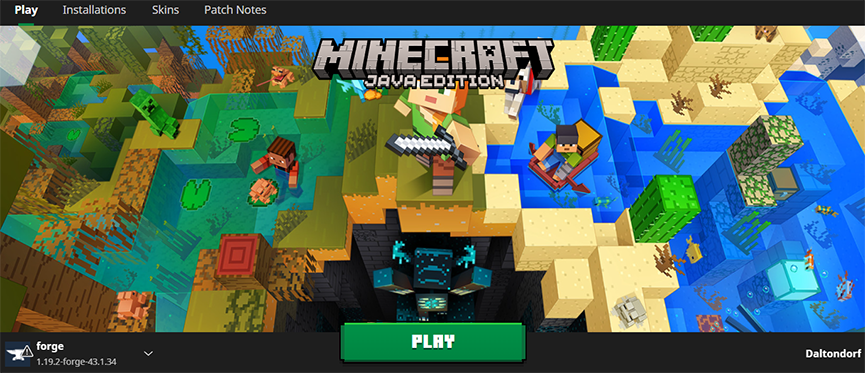
By default, the Vanilla Minecraft launcher is not able to run any mods. This is achieved by installing Minecraft Forge to your client. For a full guide on installing Forge client-side, visit our tutorial here.
Installing Minecraft Forge
- Navigate to the Minecraft Forge download page.
- Within the left-hand menu, select the version you require.
- Select either Installer from either the Latest or Recommended release.

- Save and run the downloaded Forge .jar file.
- Check that the information looks correct, then press
Okto install.
- Once installed, return to the Minecraft launcher and ensure your Forge version is available.
Note: If you cannot find your Forge profile, visit the Installations tab in the launcher, then ensure the Modded box has been checked.
Adding Mods
- From the Minecraft launcher, enter the
Installationstab at the top. - Hover over your Forge installation, then press the
Open Foldericon to the right.
- In the new window, locate or create the
modsfolder, then enter it. - Paste the mod .jar file(s) from earlier into this location.

- Once done, return to the MC launcher and press
Play.
CurseForge Launcher Installation
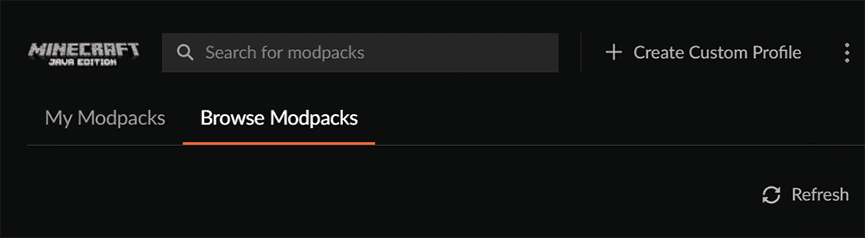
Creating a Custom Profile
- Download and install the CurseForge launcher from their website.
- Once opened, press the
Create Custom Profilebutton at the top.
- Here, you can customize the name and Minecraft version of the profile.
- If you require a specific Forge version, use the applicable dropdown menu.
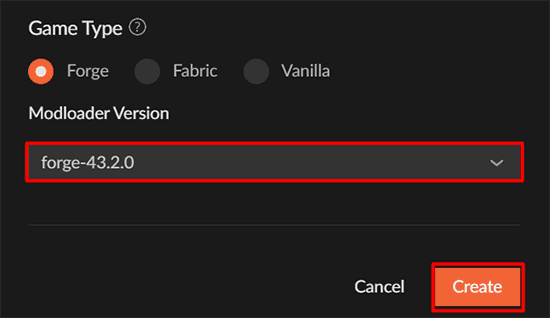
- Finally, press
Createto automatically install Forge to this new profile.
Installing Mods Manually
- From the CurseForge app, right-click your newly-created Custom Profile.
- Click the
Open Folderbutton and enter the opened window.
- Locate and enter the
modsfolder, then paste the mod file(s) here. - Once complete, return to CurseForge and press
Playon your custom profile.
Note: This method can also be used to install mod files on existing modpacks in order to add more features.
Installing Mods Automatically
Instead of manually installing mods on the CurseForge launcher, you can also install them directly from the app. Keep in mind that not all mods are available through this method.
- Within the CurseForge application, click on your Custom Profile.
- Under the
Installed Modssection, pressAdd More Content.
- On the next page, browse for the desired mod, then click
Install.
- CurseForge will automatically download the necessary files for your mod to run.
- Once completed, click
Playto load up your mod files.
Alternative Launchers

While this tutorial covers the two most commonly-used launchers, these instructions should function on any Minecraft launcher that allows you to run Forge-based versions, including modpacks. Regardless of the launcher, the process is the same, requiring you to access the mods folder and add your .jar files.
Common Issues
Minecraft crashes upon startup:
There are many reasons for this, but this issue often occurs when there is an issue with one of the mod files. Ensure that all mods and Forge are running the same game version, as well as confirm that any dependency mods are installed. If issues persist, check the error message to see if any additional information is provided. Once this is completed, return to the launcher and restart the game.
Mod rejection error when joining a server:
When this error is received, it generally means that the server is running mods that are not installed on your client or vice-versa. Check that all installed mods on the server are also on your own game. To check that the mods are working correctly, enter the Mods tab from the main menu. After the mod files match, restart the game and attempt to join once again.
This server has mods that require FML/Forge to be installed on the client error:
If this error appears, it often means that you are attempting to join the server from a vanilla version. You can confirm this by checking if the Mods tab from the main menu appears. If not, return to your launcher and make sure you are only launching from your Forge installation. After everything loads correctly, try to join the server again.
Helpful Links
- Modded Minecraft Server Hosting
- CurseForge Mod List
- How to Install Minecraft Forge (Client-Side)
- CurseForge App Download
Frequently Asked Questions (FAQ)
How do I install mods in Minecraft Java Edition?
To install mods in Minecraft Java Edition: Install Minecraft Forge for your game version. Download mod files in .jar format from a trusted source. Open the Minecraft launcher, select your Forge profile. Locate the mods folder in the game directory. If it doesn’t exist, create one. Place the downloaded mod files into the mods folder. Launch the game using the Forge profile to load mods.
Can I install Minecraft mods without Forge?
Most Minecraft mods require Forge or a similar mod loader to function. While there are a few standalone mods that don’t need Forge, nearly all popular mods are designed to run with Forge or Fabric.
What is Minecraft Forge and why do I need it for mods?
Minecraft Forge is a modding API that allows Minecraft to load and run mods. It acts as a bridge between the game and custom modifications, ensuring compatibility and stability. Without Forge, the game cannot interpret most mod files.
How do I add mods using the CurseForge launcher?
To add mods with the CurseForge launcher: Create or select a custom profile. Open the profile and click “Add More Content.” Browse or search for a mod and click “Install.” CurseForge will download and enable the mod automatically. Press “Play” to launch with the mod installed.





















