


Minecraft Bedrock comes with its many benefits, with one of them being the ability to crossplay if Geyser is installed on the server. This means you can join a multiplayer Java world on multiple devices, including Xbox and Nintendo Switch. However, this process can be tedious and difficult to accomplish. It involves you changing around console settings to successfully establish a connection. Sadly, this method doesn’t always work for some players due to complications. With this in mind, we’ve created this guide to show you how to join a Minecraft server on Xbox and Nintendo Switch so you can begin playing with friends.
Getting Started

Before playing around with your console’s settings, you need to understand a few important aspects of this process. Starting with the first one, you’ll be editing the Domain Name System (DNS) IP addresses to help your connection. This may seem nerve-racking at first but will be simplified in this tutorial. Besides this, another critical piece of information to keep in mind is the chance of this not working. This is due to some addresses being blocked, meaning you’ll need to try different ones depending on your region. If nothing seems to be working, then you’ll have another method to hopefully join the Bedrock server without further problems. The table below shows the possible addresses to use for this process, which should be noted for later when following the instructions below.
| IP Address | Location | Note(s) |
|---|---|---|
| 104.238.130.180 | United States | This address is known to be problematic for several players. |
| 173.82.100.84 | United States | An alternative choice for US players. |
| 207.244.229.200 | United States | Located in the Central US, best for those within this region. |
| 217.160.58.93 | Germany | No DNS service, only BedrockConnect server. |
| 134.255.231.119 | Germany | Alternative choice for Germany players. |
| 213.171.211.142 | United Kingdom | No DNS service, only BedrockConnect server. |
How to Add a Minecraft Server on Xbox
Players using Xbox to join Bedrock servers will need to follow a specific configuration on their console. Remember, you’ll be changing the DNS settings of the system. This involves you editing the IP address to one of the types in the table above. Keep this in mind when following along below to play with others on Minecraft Bedrock Edition. Besides this, these changes won’t interfere with other games, but you can revert the addresses if you want.
- Open your Xbox settings, then click
Generaland select theNetwork Settingsoption.
- Go to
Advanced Settingsand choose theDNS Settingsoption, then press Manual.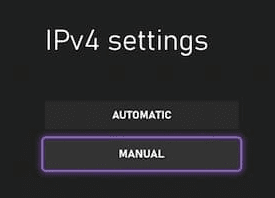
- Begin to tweak the Primary IPv4 Address to your desired one from before.

- As for the Secondary IPv4 DNS, enter
8.8.8.8or1.1.1.1for its field.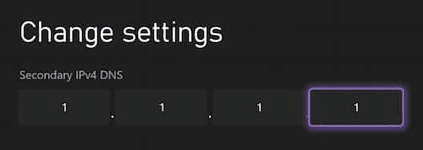
- Save these changes so the console can perform a connection test to confirm it works.
How to Add a Minecraft Server on Nintendo Switch
Similar to the Xbox setup, you’ll be editing the DNS settings of your Nintendo Switch system. This means you must choose any of the addresses from the previously noted table and use it accordingly. Keep in mind that these changes won’t negatively affect other games when playing multiplayer. When you’re ready, review the steps below to get started with this process.
- Head towards your
System Settingsfrom the home screen on your console. - Afterward, scroll down and select
Internetand clickInternet Settingson the right.
- Wait for searching networks to stop, then press on your currently used one.
- In this new area, click
Change Settingsand switchDNS Settingsto Manual.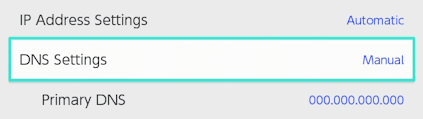
- Proceed to enter your desired address for the Primary DNS option.
- Do the same for the Secondary DNS setting, but use
8.8.8.8or1.1.1.1instead.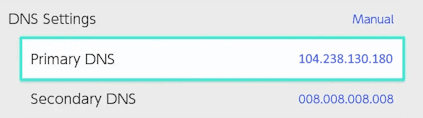
Note: Make sure to include zeros where applicable for this to work.
- Once you’re finished, click
Saveon the right and you’re ready to go.
Third-party Apps to Add Minecraft Servers
Due to the possibility of DNS changes not working properly on your console, there’s another way to join servers on Minecraft. This involves you downloading and using third-party applications on your mobile device. We highly recommend trying BedrockTogether for iOS or Android for this task, as it’s the most popular one on the market. It’s completely free and allows you to easily configure everything, which is also straightforward too. Once you’ve installed this application, follow the prompts accordingly to start playing with friends on your console. If for some reason this app won’t work or isn’t compatible with your device, consider researching similar types. However, make sure to be cautious as you do this process since malicious developers may try to trick you.
Joining Bedrock Servers
After doing the DNS changes or using a third-party app, the process for joining a Bedrock server is the same regardless of the console used for it. This means the following instructions are universally applicable. When you’re ready, follow along below to get started.
- Open your Minecraft application and click
Playfrom the main menu. - Afterward, head towards the
Serverstab and join any featured one. - Once in-game, click
Connect to a Serverfrom the new menu that appeared.
- Continue to enter your desired Server Address and Port accordingly.

- Toggle the
Add to Server Listoption and pressSubmitto begin playing on the server.
Common Issues
Unable to Connect to World





















