Xbox and Nintendo Switch players have no “Add Server” button in Minecraft Bedrock Edition. While PC and mobile players can type in a server address directly, console players hit a wall the moment they try to join a custom multiplayer server. The workaround is a DNS trick that reroutes your console’s connection through BedrockConnect, an open-source tool that gives you a server browser where you can enter any IP address.
This guide walks through the full setup for both consoles, from changing DNS settings to entering your server IP and port. If you run a crossplay server with GeyserMC, the same method applies for connecting from Xbox or Switch.
Why Xbox and Switch Need the DNS Method
Microsoft and Nintendo do not allow Bedrock Edition players to connect to custom servers through the game’s interface. The Servers tab only shows a handful of featured partner servers. BedrockConnect solves this by running a DNS redirect: when you change your console’s DNS settings to point at a BedrockConnect server, joining any featured server in the list reroutes you to a special menu where you can type in the IP and port of the server you actually want to join.
Pick one of the addresses below for your primary DNS. Choose an IP close to your region for the best connection speed. You will need this address during the console setup steps that follow.
| IP Address | Location | Note(s) |
|---|---|---|
| 104.238.130.180 | United States | This address is known to be problematic for several players. |
| 173.82.100.84 | United States | An alternative choice for US players. |
| 207.244.229.200 | United States | Located in the Central US, best for those within this region. |
| 217.160.58.93 | Germany | No DNS service, only BedrockConnect server. |
| 134.255.231.119 | Germany | Alternative choice for Germany players. |
| 213.171.211.142 | United Kingdom | No DNS service, only BedrockConnect server. |
If you need a Minecraft Bedrock server to connect to, Apex Hosting offers plans that support both Bedrock and Java Edition with full panel access.
How to Add a Minecraft Server on Xbox
Players using Xbox to join Bedrock servers will need to follow a specific configuration on their console. Remember, you’ll be changing the DNS settings of the system. This involves you editing the IP address to one of the types in the table above. Keep this in mind when following along below to play with others on Minecraft Bedrock Edition. Besides this, these changes won’t interfere with other games, but you can revert the addresses if you want.
- Open your Xbox settings, then click General and select the Network Settings option.

- Go to Advanced Settings and choose the DNS Settings option, then press Manual.
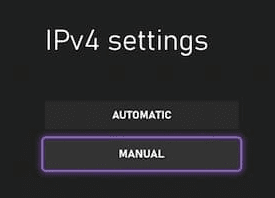
- Begin to tweak the Primary IPv4 Address to your desired one from before.

- As for the Secondary IPv4 DNS, enter 8.8.8.8 or 1.1.1.1 for its field.
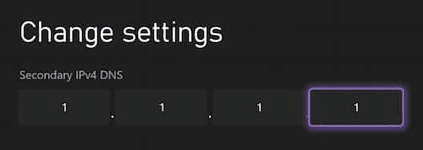
- Save these changes so the console can perform a connection test to confirm it works.
How to Add a Minecraft Server on Nintendo Switch
Similar to the Xbox setup, you’ll be editing the DNS settings of your Nintendo Switch system. This means you must choose any of the addresses from the previously noted table and use it accordingly. Keep in mind that these changes won’t negatively affect other games when playing multiplayer. When you’re ready, review the steps below to get started with this process.
This method also works on the Nintendo Switch 2, which supports the same DNS configuration through its network settings.
- Head towards your System Settings from the home screen on your console.
- Afterward, scroll down and select Internet and click Internet Settings on the right.

- Wait for searching networks to stop, then press on your currently used one.
- In this new area, click Change Settings and switch DNS Settings to Manual.
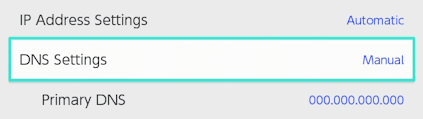
- Proceed to enter your desired address for the Primary DNS option.
- Do the same for the Secondary DNS setting, but use 8.8.8.8 or 1.1.1.1 instead.
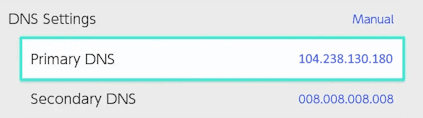
Note: Make sure to include zeros where applicable for this to work.
- Once you’re finished, click Save on the right and you’re ready to go.
Where to Enter the Server IP Address
After completing the DNS setup on your console, you still need to enter the actual server IP and port number. This is the same process on both Xbox and Nintendo Switch. The DNS change only gives you access to the server browser; you still need your server’s address and port to connect.
The default Bedrock port is 19132. If the server owner has not changed it, use 19132 in the port field. Servers running GeyserMC for Java-to-Bedrock crossplay typically use port 19132 as well, though the server owner may have configured a different one.
- Open your Minecraft application and click Play from the main menu.
- Afterward, head towards the Servers tab and join any featured one.
- Once in-game, click Connect to a Server from the new menu that appeared.

- Continue to enter your desired Server Address and Port accordingly.

- Toggle the Add to Server List option and press Submit to begin playing on the server.
If the server address is a domain name (like play.example.com) rather than a numeric IP, enter it exactly as the server owner provided it. The DNS redirect handles resolution on the backend.
Alternative Tools for Adding Minecraft Servers
If changing DNS settings does not work on your network, two other tools can get you connected without touching your console’s network configuration.
BedrockTogether is a free mobile app available on iOS and Android. It runs a local proxy on your phone that broadcasts a custom server as a LAN game, which your console can then join from the Friends tab. BedrockTogether works with Xbox and PlayStation but does not currently support Nintendo Switch.
Phantom is a PC-based tool that does the same thing from a desktop computer. It makes a remote Bedrock server appear as a LAN game on your local network, so any device on that network can join without DNS changes. Phantom is open source and available on GitHub. It works with all consoles, including Nintendo Switch, as long as the PC and console are on the same Wi-Fi network.
Troubleshooting Common Connection Issues
This is the most common error when connecting to Bedrock servers from a console. Multiple causes can trigger it. For crossplay servers, updating GeyserMC and Floodgate to their latest versions often fixes it. Restarting both the console and the server is worth trying before anything else. Loading a singleplayer world first and then connecting to the server has also been reported to work around this issue. If none of those help, try switching your primary DNS to a different IP from the table above, or swap your secondary DNS between 8.8.8.8 and 1.1.1.1.
This error usually means too many players are attempting to connect at the same time, or the server’s connection queue is full. Restart the server and try again after a couple of minutes. Server owners can raise the player cap through the Apex Hosting panel if the server is consistently hitting its limit. On crossplay servers, reconfiguring or updating GeyserMC and Floodgate can also resolve this. Joining a singleplayer world or a different server first, then reconnecting, sometimes clears the issue.
This message appears when the server has an active whitelist or allowlist. The server owner needs to add your gamertag to the list before you can connect. On Bedrock servers, the allowlist uses your Xbox Live gamertag. The easiest approach is to have the owner disable the whitelist temporarily, let you join, then re-enable it and add your name.
Xbox consoles can ignore your manual IPv4 DNS settings when IPv6 is active on the network. The console prefers IPv6 and skips the IPv4 DNS you entered, which means the BedrockConnect redirect never kicks in. There are two fixes for this. The first is to disable IPv6 on your router entirely, which forces the Xbox to use your manual IPv4 DNS. The second is to set your primary DNS to the IPv6 BedrockConnect address 2001:19f0:4009:4126:5400:00ff:fe22:0d52 instead of one of the IPv4 addresses in the table above. This issue primarily affects Xbox; Nintendo Switch does not prioritize IPv6 the same way.
The “Drowned” error is a Microsoft account authentication failure, not a problem with the server itself. It means your Xbox Live session could not be verified. To fix it, sign out of your Microsoft account on the console and sign back in. If that does not work, change your Microsoft account password from a browser, then sign in again on the console. As a last step, open the Xbox Gaming Services app in the Microsoft Store and run the Repair tool. This error affects both Xbox and PC Bedrock players and is unrelated to DNS settings.
Frequently Asked Questions
Microsoft does not include an add server button on the console version of Minecraft Bedrock Edition. The Servers tab only shows featured partner servers that Microsoft has approved. The DNS method described in this guide is the standard workaround that console players use to connect to custom servers.
Yes. The Nintendo Switch 2 uses the same network settings interface and supports manual DNS configuration. The steps are identical to the original Nintendo Switch setup described above.
Not directly. Java servers require the GeyserMC plugin to accept Bedrock connections. If the server owner has installed GeyserMC, you can connect from Xbox or Switch using the DNS method and entering the server’s Bedrock IP and port. You can play Minecraft with friends across Java and Bedrock this way.
No. The DNS change only affects how your console resolves domain names. Other games, apps, and streaming services will continue to work normally. If you want to revert the change after playing, switch the DNS setting back to Automatic in the same menu where you set it to Manual.
If you play Minecraft Bedrock on other platforms, you can also join a Bedrock server on PlayStation using a similar DNS method.