

Hytale offers a vast range of world settings that let you custom the gameplay of your server. Whether you’re setting up a creative build world or an adventure experience, changing the gamemode is quick and easy. In this Apex Hosting guide, we’ll walk you through the fastest way to change the gamemode on your Hytale server so your world plays exactly how you want it to 👏
Hytale World Gamemode Setup
Instead of editing a configuration file, you can quickly change the gamemode via commands. This process will require you to become an admin on your Hytale server. When you’re ready, follow these steps:
- Launch Hytale and join your server with an account that has admin permissions.
- While in-game, open the chat and type
/world settings gamemode set [mode].
Currently available modes include: Adventure & Creative.
- If successful, you will see a confirmation message!
We recommend using the /world save –all –confirm command after changing gamemodes. This will ensure that the new mode is saved after the server restarts. Otherwise, there is a very small risk that it will not save properly.
Hytale Server World Configuration
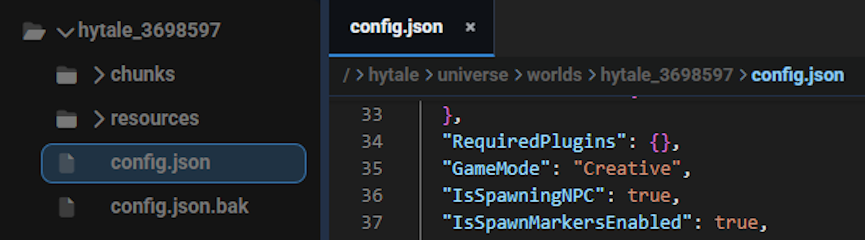
While there are plenty of options in the /world settings main command, you have the ability to view or edit the configuration file of your world instead. This process involves you to navigate to the FTP File Access area from your Apex server panel, then locating it here:
universe / worlds / [world name] / config.json
⚠️ We do not suggest editing this file, as using commands is safer – but it’s up to you.
Changing Gamemodes on Your Hytale Server
Switching gamemodes on a Hytale server is fast, flexible, and best handled through in-game commands. Whether you’re adjusting gameplay for builders, adventurers, or special events, using the world settings command ensures your changes apply instantly and safely. Save your world after making changes, and you’ll be ready to jump back in with the new gamemode active.





















