

Do you ever feel like the beautiful world of Hytale is hiding just out of sight behind a thick, mysterious wall of fog? Maybe you’re standing on top of a massive peak in Zone 1 and want to see the distant landscapes without everything clipping out before you can enjoy the view.
In this Apex Hosting guide, we’ll show you how to take control of your Hytale Max View Distance and finally see the world exactly the way it was meant to be seen. 🔥
What is Max View Distance?
Max View Distance tells your server exactly how many chunks to send to your game client at any given time. By default, this value is set to 12, which provides a solid balance of visibility and stability for most players.
Increasing this value lets you see structures and unique biomes from much farther away, while lowering it can improve frame rates if you’re experiencing performance issues.
Performance and RAM
⚠️ High view distances come with a heavy cost to your server resources.
Every extra chunk you load puts a significant strain on your RAM and CPU. If you start noticing heavy lag or your server begins to crash unexpectedly, you likely need more memory to handle the visual load. Optimizing your server settings, such as fine-tuning view distance and monitoring resource usage, can help maintain stable performance before scaling your hardware.
This is especially important if you plan on adding multiple mods or inviting a large group of players to your world. You can always upgrade your current server plan through your billing dashboard to ensure your hardware keeps up with your ambitions.
How to Change Hytale Max View Distance
Adjusting this setting only takes a few seconds inside your Apex server panel. 👇
- Navigate to Server Configuration > Config Files on the left side of your panel.
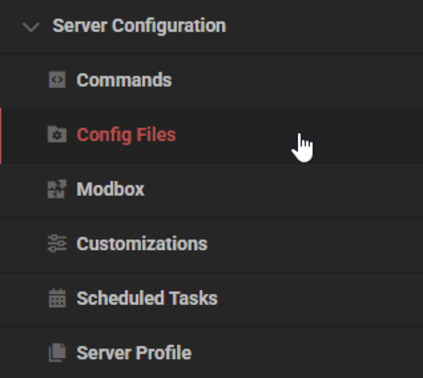
- Select Hytale Server Settings.

- Scroll to the bottom to find the Max View Distance option and change the number from 12 (default) to your new desired value.

- Save the changes to apply them to your server.

Hytale PerformanceSaver Plugin
We have included the Hytale PerformanceSaver Plugin to help keep your world stable during intense gameplay. This tool is designed to dynamically adjust your view distance in real-time if it detects that the server is beginning to struggle.
By scaling the distance down during high-traffic moments, it prevents lag spikes before they can ruin your adventure. This ensures that your players always have a responsive experience, even when the server is under heavy load.
Master the Horizon
Now that you’ve cleared the air, the entire world of Orbis is yours to explore without limits. Whether you are hunting for hidden secrets in ancient towers or building a massive custom village, having that extra visibility changes the entire experience.
Don’t forget to keep an eye on your performance metrics to keep those frames high and the gameplay smooth for everyone on the server. Your Hytale journey is just getting started, so get out there, climb the highest mountain, and claim your territory! 👏





















