

Customizing your Hytale server comes in many different shapes and sizes, as the game is designed to be flexible. One such way is to import 3D objects and images in your world. Whether you’re adding a custom model or the logo of your server, this is how you can do that. The process can be slightly complicated, so we’ve created this Apex Hosting guide to help you import objects and images on your Hytale server 👏
Importing 3D Objects
- Launch Hytale and join your server with an admin account.
- Open your inventory and click
Creative Toolsat the top.
- Hover over
Worldand select theImport OBJoption.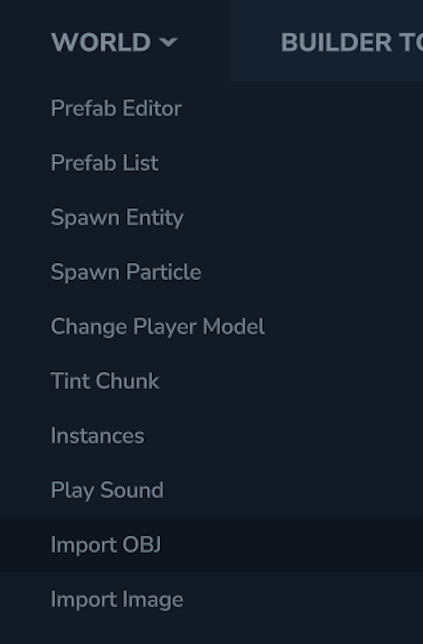
- Keep this open, then head towards your Apex server panel.
- Navigate to
File Management > FTP File Accessand login.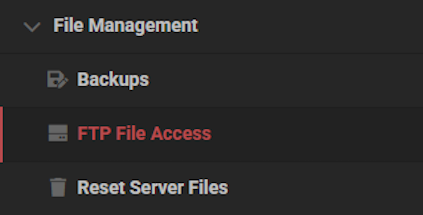
- Drag + drop the .obj file inside of the
imports / modelsdirectory.
- Return to the game, and select your uploaded file from the
Browseoption. - Modify the height and other options, then click
Import to Clipboard.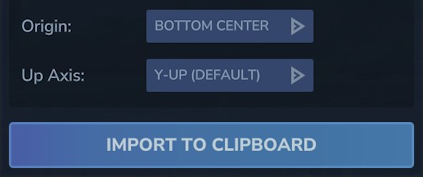
- Use the Paste Tool or
/pastecommand to upload the object in-game.
Importing Images
- Launch Hytale and join your server with an admin account.
- Open your inventory and click
Creative Toolsat the top.
- Hover over
Worldand select theImport Imageoption.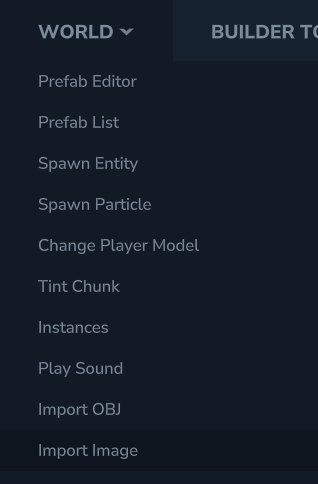
- Keep this open, then head towards your Apex server panel.
- Navigate to
File Management > FTP File Accessand login.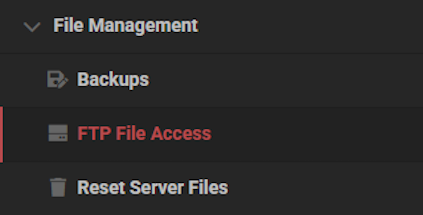
- Drag + drop the .png file inside of the
imports / imagesdirectory.
Create this folder if you don’t see it on your server.
- Return to the game, and select your uploaded file from the
Browseoption. - Modify the max size and other options, then click
Import to Clipboard.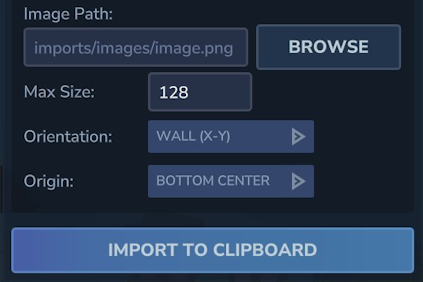
- Use the Paste Tool or
/pastecommand to upload the image in-game.
Importing Objects / Images in Hytale
Hytale offers in-game menus to easily help you import objects or images, no external tool for it. Adding custom assets is quick and easy, including on the server-side too. All you need to do is upload the file(s) and you’re done! With these tools, you can build a unique Hytale server to keep your friends or other players entertained. Whether you’re hosting a small world to mess around with or creating a large community, custom objects and images come in handy.





















