Manually sorting through dozens of chests after a long adventure is a classic chore that every player dreads. The Automatic Storage mod for Hytale elegantly solves this problem with an event-driven system that automatically distributes items from a central crate to nearby chests, all without the server-lagging polling of similar mods. In this Apex Hosting guide, we’ll show you how to install Automatic Storage on your Hytale server with our one-click installer 👏
Automatic Storage Installation
- Head towards your Apex server panel, then click
Stopat the top. - Navigate to
Server Configuration > Modboxon the left.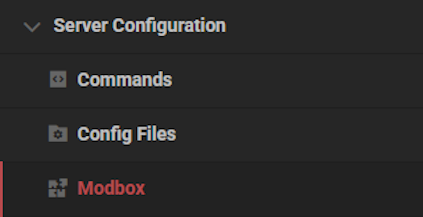
- Locate the mod via categories or the search bar, then select it.
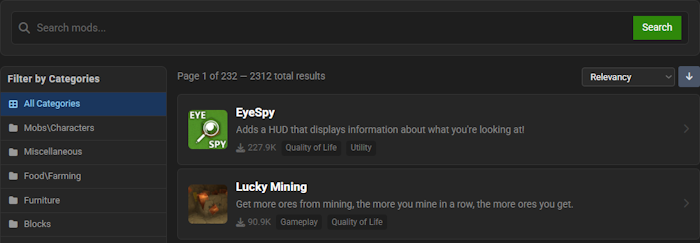
- Choose a version on the right and click
Install.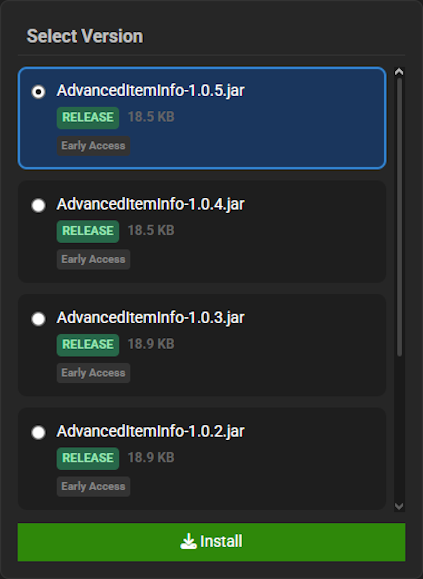
- Return to the main panel and
Startup the server to load the mod.
Automatic Storage Showcase
Automatic Storage completely revolutionizes your inventory management with a suite of powerful and intuitive features. These systems are designed to eliminate manual sorting and give you ultimate control over your items.
Smart Targeting
Automatic Storage introduces an intelligent system where items are automatically sent to containers that already hold the same type of item. This Smart Targeting feature prioritizes filling existing stacks before using new slots, ensuring your storage is always compact and efficient.
Per-Crate Configuration UI
To fine-tune your setup, navigate to any crate and use the crouch and ‘F’ key combination to open a dedicated configuration menu. Within this UI, the Automatic Storage mod grants you complete control over individual crate settings, including horizontal and vertical range, sorting modes, and other powerful options.
Dual Sorting Modes
The Automatic Storage mod provides two distinct sorting modes to fit your organizational style. You can sort by exact item ID for precise stacking or use the category mode to group similar items like all of your tools or weapons together.
Server-Side Customization
Server administrators have deep control over the mod’s mechanics for a balanced multiplayer experience. With Automatic Storage, owners can adjust transfer rates, define custom crafting recipes, set the maximum search radius, and even create advanced filters for container types.
SimpleClaims Compatibility
Protect your hard-earned loot and meticulously organized storage from unwanted interference. The Automatic Storage mod is fully compatible with SimpleClaims, ensuring that your automated systems respect land protection rules and prevent griefing.
Modded Hytale Server Hosting
Automatic Storage streamlines your entire inventory system, freeing you up to focus on what truly matters: adventure. Your base is now perfectly organized, and the challenges of Zone 1 are just the beginning. Invite your friends and prepare for an unforgettable journey!
Frequently Asked Questions
Below are frequently asked questions about the gameplay and configuration features of Automatic Storage.
How does the Automatic Storage Crate sort items?
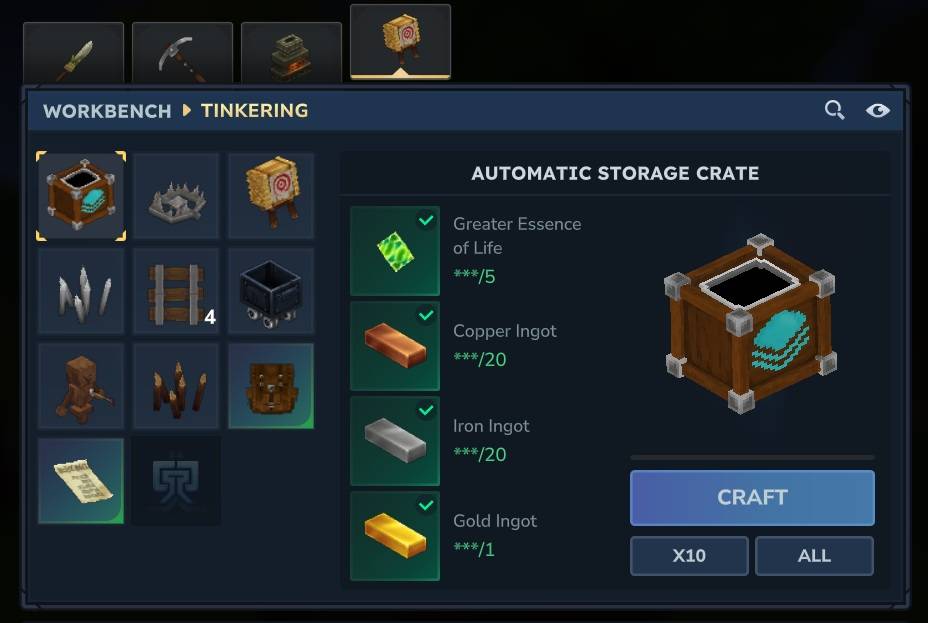
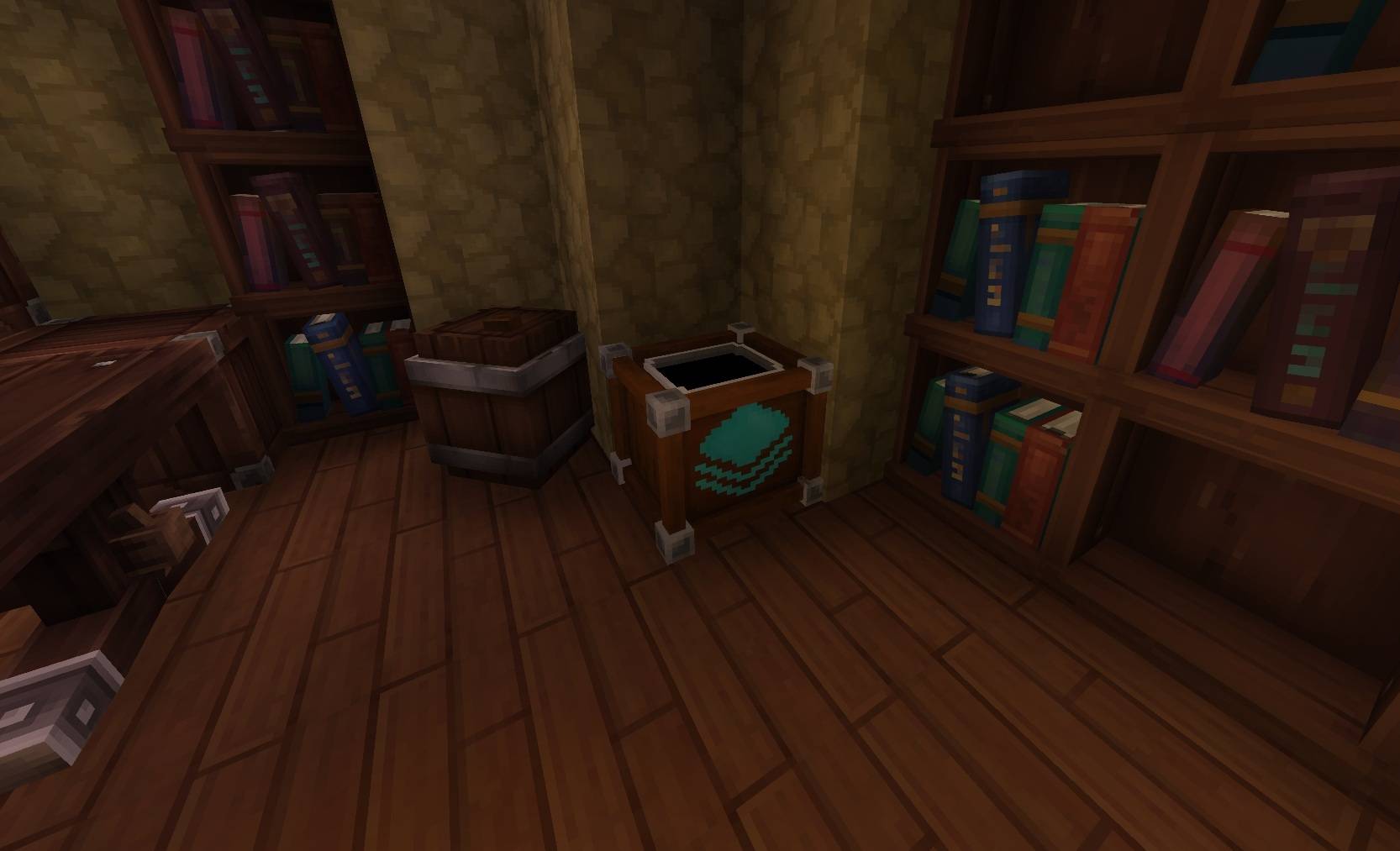
After you place items inside an Automatic Storage Crate, it begins to distribute them to compatible nearby chests. The crate uses smart targeting to send items to chests that already contain the same item type. It will intelligently fill existing stacks of an item before starting a new stack in an empty slot. This process respects your chest organization and will never transfer items to another Automatic Storage Crate.
How do I configure a specific Automatic Storage Crate?
To configure an individual crate, locate the Automatic Storage Crate you wish to change. Crouch and press your interact key (default ‘F’) while looking at it to open the configuration user interface. In this menu, you can change its sorting mode, adjust the horizontal and vertical range using the +/- buttons, and view a live count of linked chests within its range.
What are the different sorting modes in Automatic Storage?
There are two sorting modes available that you can set for each crate. The “Identical Item” mode provides strict matching, only transferring items to a chest that already contains that exact item ID. The “Item Category” mode is a broader option that sorts items based on their category, allowing you to group things like all weapons or all tools together in a single chest. You can change this mode in the per-crate UI.