

Whether you’ve accidentally corrupted your world with creation tools or mistakenly deleted an important build, having the ability to restore a world on your Hytale server is important. It acts as insurance, just in case something bad happens. Fortunately, the process to do that is extremely simple! In this Apex Hosting guide, we’ll show you how to restore your a world on your Hytale server 👏
Hytale Server Backups
We offer an automatic system to quickly restore all your Hytale worlds on the server. This includes player items, world chunks, and memories! However, you can also manually restore an individual world if you want – rather than every world. This takes a little bit more time, but should be straightforward.
Restoring All Worlds
- Head towards your Apex server panel, then
Stopthe server. - Navigate to
File Management > Backupson the left.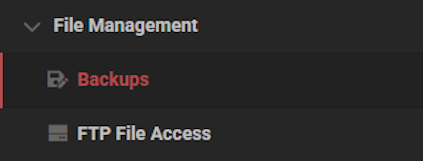
- Locate a suitable backup, then click
Restoreand confirm.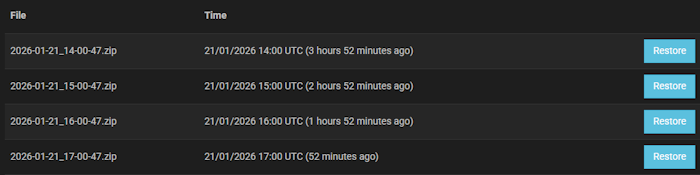
- Wait for this to finish, then you can start up the server.
You can check the Console to verify if the restoration was successful.
Restore Specific Worlds
As for restoring a specific world on your Hytale server, you would need to download the backup zip file, extract it on your computer, then only upload the world you want to restore. Before you follow the steps below, make sure to stop the server.
- Navigate to
FTP File AccessfromFile Managementin your server panel. - Login with your password, then locate the backup zip file you want.
- Right-click and select
Download, then save it somewhere easily accessible.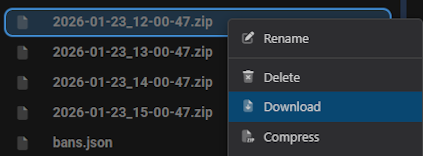
- Extract it with 7zip or WinRAR and find the world you want to restore.
- Drag + drop the folder into the
universe > worldsdirectory via FTP.
⚠️ For more information about the uploading process, click here.
Hytale World Restoration
Just like clockwork, your Hytale server automatically makes backups every so often – so you can have peace of mind. Choose the one you want, and click! In just a few minutes, your Hytale server will be restored back to an older version. If you do it manually, then you can control what gets restored. Whether you want only the player data or world chunks, you have all the necessary tools to make it happen.
Hytale Restore World – FAQ
Why don’t I see any backups on my Hytale server?
If you’ve previously disabled the automatic scheduled task to make backups for your Hytale server, then nothing will appear in the Backups tab. However, double-check the FTP File Access area in the panel. If you see something like “2026-01-21_14-00-47.zip”, then this is a backup. We encourage you to redo the scheduled task or manually restore one of the zip files found in the FTP panel. Otherwise, contact our 24/7 Support Team. We will help you restore the world!
Why didn’t the backup restore my Hytale server world?
Depending on the backup you selected, it may have been too recent. Try choosing an older backup, look at the timestamp to determine which one is suitable. If all of the backups do not restore your world to the state you want it, then our Support Team will need to restore the world.
How can I only restore one world or specific files for it?
You will need to manually download the backup zip file, extract it on your computer, then locate the world folder you want to restore. You can also selectively choose player data too. After gathering all the folders / files you want to restore, you will need to replace them on the server via the FTP File Access area.





















