


The easiest way to secure your Hytale server is by adding a password. This prevents anyone without the specific code from joining your world.
- Head to your Apex Server Panel and select Config Files from the left menu.
- On this page, choose Hytale Server Settings.
- In the Server Password field, enter your desired password and click Save.
- Restart the server to apply your new password.


Setting up a Hytale Server Whitelist
Setting up a whitelist for Hytale is straightforward, and you can manage your whitelist with just two main commands.
How to Enable the Whitelist
- In your Apex Hosting panel, select Console from the left menu.
- While the server is running, enter
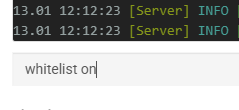
whitelist onin the command prompt and click Send. - If successful, you will see the “Whitelist enabled!” confirmation message.
Adding Players to the Whitelist
- In your Apex Hosting panel, select Console from the left menu.
- While the server is running, enter
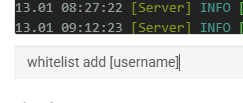
whitelist add [username]in the command prompt and click Send. Replace [username] with the Hytale account you want to be whitelisted. - If successful, you will see the “Added [username] to the whitelist!” confirmation message.
Whitelist JSON File
If you want to check the configuration file for the whitelist, follow these instructions. Remember to stop the server before making changes to the whitelist.json file.
- In your Apex Hosting panel, select Config Files from the left menu.
- From here, select Hytale Whitelist.
- Inside the file, you can see whitelisted Hytale Accounts (IDs) and if the whitelist is enabled.

Important: Only edit this file if you know what you’re doing!
Hytale Whitelist Commands
| Command | Description |
|---|---|
whitelist [on / off] |
Enable or disable the whitelist for the server. |
whitelist [add / remove] |
Add or remove players from the whitelist. |
whitelist list |
Displays all whitelisted players. |
whitelist status |
Shows if the whitelist is enabled or disabled. |
whitelist clear |
Remove all players from the whitelist. |
Private Hytale Adventures
Securing your server gives you peace of mind, allowing you to focus on building, exploring, and adventuring with your friends. Whether you use a simple password or a strict whitelist, you now have full control over who enters your world. Get out there and enjoy your private Hytale journey!





















