

Transferring a singleplayer world to your Hytale server lets you continue your adventure with friends without starting over. Whether you’ve spent hours building a base or exploring a specific Zone layout, moving that progress to multiplayer is quick and straightforward. In this Apex Hosting guide, we’ll walk you through both available methods so you can choose the one that fits your setup 👏
Hytale File Location:
- PC: %appdata%\Hytale
- Mac: ~/Application Support/Hytale
- Linux: $XDG_DATA_HOME/Hytale
Migrating All Singleplayer World Data
This process will remove all existing world data from the server, which will be replaced with your singleplayer saves. This does not include mods, you will need to do similar processes for singleplayer mods.
⚠️ Skip to ‘Transfer Only Singleplayer Worlds’ if you want to only transfer singleplayer worlds.
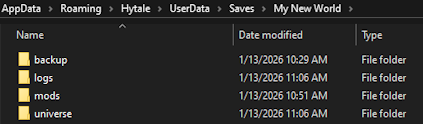
- Navigate to your Hytale singleplayer
Savesfolder.
E.g. C:\Users\[Username]\AppData\Roaming\Hytale\UserData\Saves - Locate and open your save world folder, revealing its contents.
- Head towards your Apex server panel, then
stopthe server. - Click
FTP File Accessat the top left and login with your password.
- Locate the
universedirectory, then right-click and selectDelete.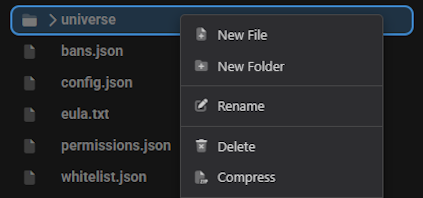
- Drag + drop your singleplayer save’s
universefolder in the server’shytaledirectory.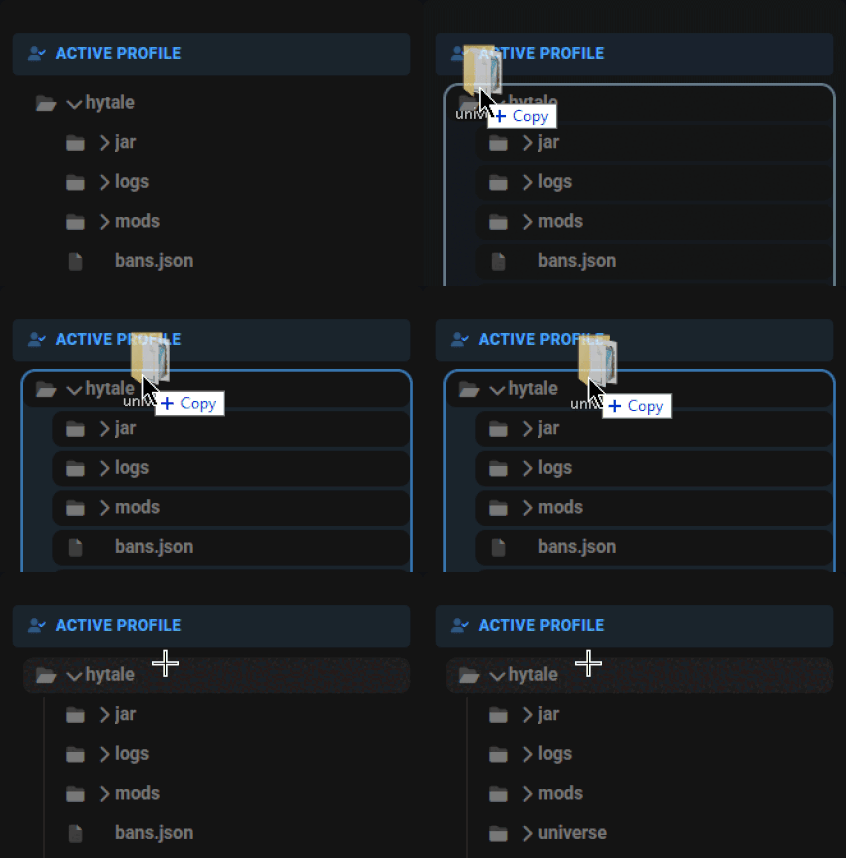
- Wait for all files to finish uploading, then return to the main panel.
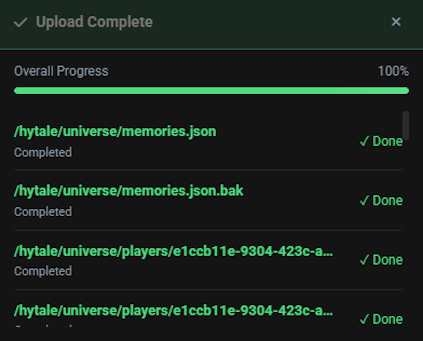
- Startup the server and join to confirm you successfully transferred worlds.
Transfer Only Singleplayer Worlds
This process only migrates your singleplayer save to the server, without removing existing multiplayer worlds.
- Navigate to your Hytale singleplayer
Savesfolder.
E.g. C:\Users\[Username]\AppData\Roaming\Hytale\UserData\Saves - Locate and open your world folder, revealing its contents.
- Open the
universe > worldsfolders. This holds your singleplayer worlds / chunks.
- Head towards your Apex server panel, then
stopthe server. - Click
FTP File Accessat the top left and login with your password.
- Navigate to the
universe > worldsfolder in the server directory list. - Drag + drop your singleplayer world folder(s) into the server
worldsfolder.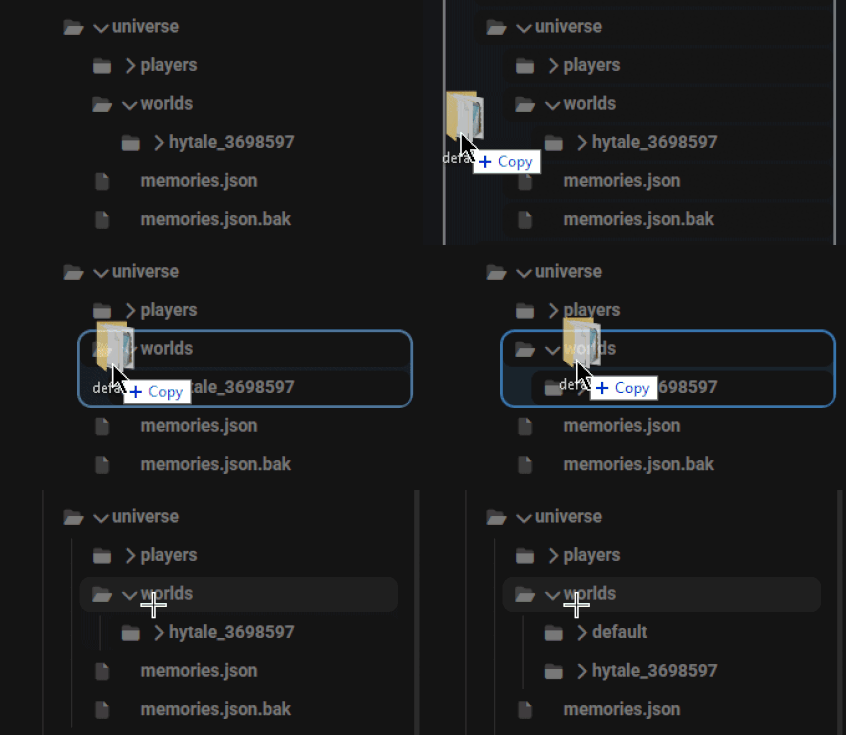
- Wait for all files to finish uploading, then return to the main panel.
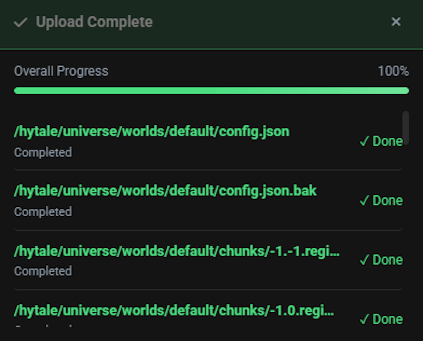
- Startup the server and join, then use
/world listto confirm it was loaded.
Note: Admin permissions are required to use this command
Hytale Singleplayer to Multiplayer!
That’s all there is to it. Your singleplayer progress is now ready for multiplayer, letting you explore, build, and survive together without losing any of your hard-earned progress. Whether you’re migrating a full universe or just a single world, transferring saves gives you full control over how your Hytale server evolves. If you plan on adding mods or additional worlds later, the same FTP workflow applies, making future expansions just as easy!
Hytale World Migration – FAQ
Will transferring my singleplayer world delete my Hytale server data?
If you migrate the universe folder completely to your Hytale server, then your multiplayer data will be deleted. You can avoid this by only uploading your singleplayer save world folder(s) or renaming the server’s universe folder to something else so it doesn’t get overwritten.
Can I transfer multiple Hytale singleplayer worlds at once?
Yes, you can upload any worlds you want from the singleplayer universe > worlds folder. Drag + drop multiple folders with ease directly in the server to transfer your saves. If you do the complete universe method, then all singleplayer worlds would have been migrated.
Do Hytale singleplayer mods or packs transfer automatically?
No, you will need to manually transfer them over to your Hytale server. The process is relatively the same, meaning you need to move your local mods folders and files to the server in their respective directory. Any .jar or .zip files, alongside modding data (folders) can be transferred to the mods directory on your server.
Why doesn’t my world appear after uploading to my Hytale server?
Double-check that the world is in the server with the /world list command. You might need to become admin / op to run that in-game. If you see the world name listed, then you can try teleporting to it via /tp world [world_name]. If you don’t see the world listed, then restart the server after making sure you’ve successfully transferred all the singleplayer files you want.
Will player inventories and progress carry over in my Hytale server?
If you migrate all singleplayer data to your Hytale server, then any players from those worlds will have their progress carried over to the server. If you only upload the world files, not the player folder, then no progress will be carried over from singleplayer other than the actual world.





















