

Keeping your Hytale server up to date is important for performance, stability, and access to the latest features. Updates often include bug fixes, balance changes, and compatibility improvements that help ensure a smooth experience for everyone. Updating also means you want to make sure any installed mods are updated too. In this Apex Hosting guide, we’ll walk you through how to update your Hytale server and mods 👏
Updating a Hytale Server
Our system will automatically install the latest version of Hytale on your server. All you need to do is restart and you’re finished!
- Head towards your Apex server panel and click
Restartat the top.
- Wait for the server to download the latest update and load successfully.

You can view its progress from
Server Management > Console. - Your Hytale server is now updated! Try joining.
⚠️ If the server was not updated, try restarting again at a later time.
How to Update Mods on Hytale Servers
There are two methods to update mods on your Hytale server: automatic or manual. If you’ve used the Modbox tool, then in a few clicks you can quickly update your mods. Otherwise, you need to skip to the “Manual Method” section to do it yourself.
Automatic Installer
- Head towards your Apex server panel, then click
Stopat the top. - Navigate to
Server Configuration > Modboxfrom the left.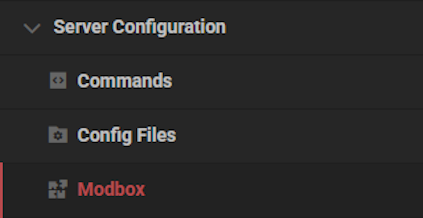
- Click
Manage Installedat the top left corner to view your mods.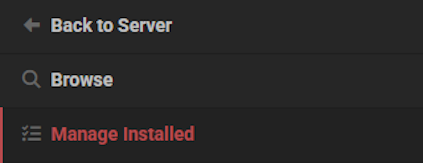
- Find mods that are flagged with “Update Available”, then click
Update.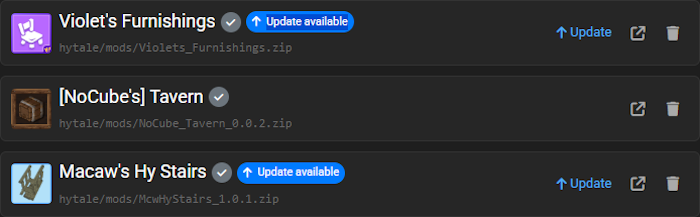
- Update all of them and return to the main panel, then
Startthe server. - Join to confirm everything is working as intended.
Manual Method
- Head towards your Apex server panel, then
Stopthe server. - Navigate to
File Management > FTP File Accessfrom the left.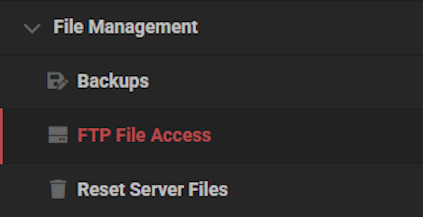
- Login with your password, then open the
modsdirectory. - Right-click outdated mods and click the
Deleteoption.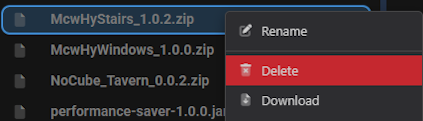
- Proceed to upload your newer mod files into this directory.
- Wait for them to finish uploading, then return to the main panel.
Startyour server and join to confirm everything is updated.
Hytale Server Updates
Keeping your Hytale server updated ensures you’re always running the latest features, fixes, and improvements as development continues. Regular updates also help maintain mod compatibility and prevent unexpected issues after new releases. If anything doesn’t update right away, a quick restart or short wait usually resolves it. With this in mind, have fun playing with friends on the latest update of Hytale! 🔥
Updating Your Hytale Server – FAQ
Why did my Hytale server not update?
In some cases, your Hytale server will not be updated because our system still has yet to implement it. We recommend trying again at a later time. If you still have problems, contact our Support Team.
Why are the mods not updating on my Hytale server?
Make sure to have your server stopped, then you can use the Modbox feature to quickly update them. If you see a mod flagged with “File URL Open Failed” or another error, click ‘Repair’ on the left. Once resolved, you should be able to update it.
How do I manually update the mods on my Hytale server?
You would need to stop the server, then navigate to the FTP panel. Open the mods folder and make sure any older versions are deleted. Drag + drop the newer files into the same folder. Restart the server and they should be updated.





















