


Overview
While playing on your Minecraft world, you may find the server missing some features. This can lead to a desire for adding unique abilities in your game, such as teleportation or player head drops. Installing datapacks can solve that scenario, as it allows for many custom features in your world. Whether you play on vanilla or use mods, any 1.13 and above server can support these packs. It’s a great way to customize your map and allow players to enjoy an enhanced version of Minecraft. However, the exact processes for installing and using datapacks can be difficult. Due to this, Apex Hosting will teach you how to correctly upload and play with them on your world.
Downloading Datapacks
- Head towards Vanilla Tweaks and select the datapacks you want installed.
- Once everything is selected, press the downwards arrow and click Direct Download.

- Drag the zipped file(s) onto your desktop or somewhere easily accessible for later use.
Not Using VanillaTweaks?
No worries! In that case, you’ll most likely be downloading the actual datapack files that don’t require to be extracted or unzipped. If you have multiple files, then you can compress them via 7-Zip and follow the instructions normally to upload them. Alternatively, you can manually upload each file instead.
How to Upload Datapacks
- Head towards your Apex server panel and press
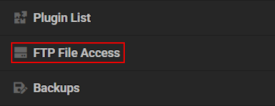
Stopat the top. - Click FTP File Access near the top left, then login with your password.
- Locate your
worldfolder from the list of files, then click it.
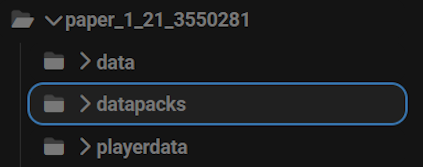
Example: paper_1_21_3550281 - Proceed to drag + drop the zip file(s) into the datapacks directory.
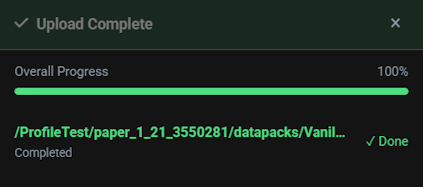
- Wait for this to finish uploading, progress is shown at the bottom.
- (Important): If you don’t need to unzip or extract the datapacks, then skip to Step 8.
- Open the
datapacksfolder, then right-click the zip file and selectExtract Here.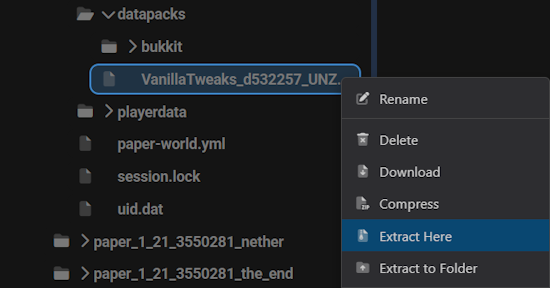
- Once you see the datapack files, return to the main panel and restart the server.
Datapack Commands
Here’s the entire command list for datapacks to help you manage them all.
| Command | Description |
|---|---|
| /datapack enable | Enables a desired pack in the world. |
| /datapack disable | Disables the targeted pack for your world. |
| /datapack list | Displays a list of all enabled/disabled datapacks. |
Conclusion
Spicing up your Minecraft experience with datapacks leads to many fun and useful features in the world. Combining tons of packs together can truly build a custom server that your friends can enjoy without having to install or set up anything themselves. This is a major advantage over mods, as players would be forced to download them to even join the game. Datapacks can be found all over the internet, but make sure you find credible ones to use on your world. Otherwise, it may lead to nonfunctional packs or problems with your server. Besides that, we hope you and other players enjoy the new datapacks on your Minecraft world!
Common Issues
Cannot Locate Datapacks Folder
In some cases, your world will not generate a datapacks folder or simply doesn’t have one if it was an uploaded/custom map. To fix that, enter into your world’s directory and press New folder in the top left corner. Proceed to name it “datapacks” and click Submit. Afterward, you can continue to upload the files normally. However, if you have server profiles enabled then make sure you’re entering the right one for this installation.
Datapacks Don’t Work
Double-check to see if your datapacks are zipped or not, as they must be zip files to properly load. If they aren’t correctly set up, checkmark the datapack folders and click Zip in the top right of your screen. Otherwise, do the similar process on your desktop via an external program and re-upload the files. Although, if your datapacks are zipped then try using the datapack enable [file name] command in the Console.
Useful Links
How to Become a Server Operator
How to Install Minecraft Mods
How to Start a Vanilla Server
Vanilla Tweaks





















