


Overview
As you play on a server, chances are you will need to access your files at some point. Whether it’s to add mods, adjust configurations, or just to work with your backups, having this access is vital to run a server. This brings users to use FTP, otherwise known as a File Transfer Protocol. This allows a server owner to upload, download, edit, and make further changes to the server’s files. There are two ways to access this, with one being through the online panel and the other using an external client. While both are equally important, each have their own unique uses. With this in mind, we have created this Apex Hosting tutorial to show you how to connect with and use each FTP method.
What is FTP?
An FTP (File Transfer Protocol) service is designed for transferring files over the internet from one system to another, often between a user and a server. This allows the user to download, upload, move, rename, and make similar modifications to files and folders, usually with a 3rd party application. When hosting a server through Apex, our panel includes a built-in FTP which can be used to quickly adjust your data and even zip/unzip files online.
Introduction to Panel FTP

The first and most popular method of using FTP is to use the Apex panel’s built-in functionality. This can be accessed at any time through the left-hand menu and is used for all quick modifications to files already present on your server, in addition to small uploads or downloads. Larger file transfers may be incompatible through this Panel FTP and will require an external client to be used.
Entering the FTP File Access
- Head towards your Apex server panel, then click
FTP File Accessat the top left.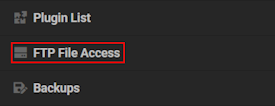
- (Optional): We recommend stopping the server before making any changes.
- Proceed to login by entering your password, when prompted.
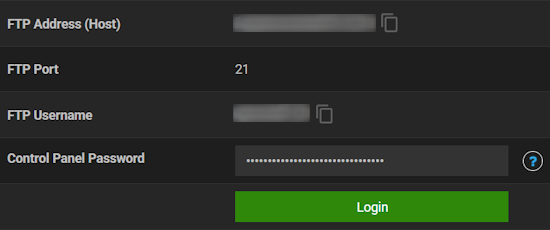
- The password will remain cached for your session, no need to re-enter it.
Folder Navigation
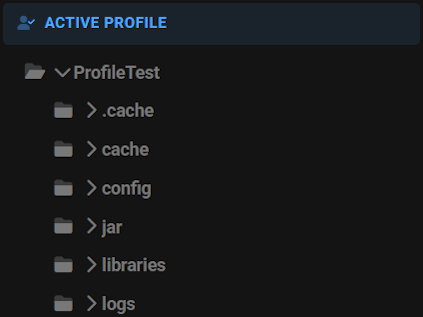
Now that you are logged into the FTP Panel, you can begin navigating through the server files. On the left, you can open up any directories by clicking on them. This reveals its contents, including files and subfolders. When you’re finished looking at a directory, click it again to close it up. Besides this, you can scroll down the list and even look through other Server Profiles.
File Management Tools
There are many tools and hotkeys to use while editing, uploading, downloading, compressing, or extracting files. Here’s a breakdown of what you need to know:
Double Click: Open and edit a file directly in the panel.
Drag & Drop: Move files and folders within the file tree.
Drag Files: Upload files from your computer into the server.
Right-click: Access additional options for files or folders.
Ctrl / Cmd + S: Save your changes when editing a file.
Ctrl / Cmd + Click: Select multiple files and folders at once.
File / Folder Options
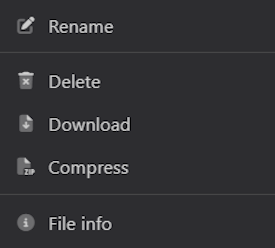
New File: Create a blank new file in the current directory.
New Folder: Create a new directory for organizing files.
Rename: Change the name of a file or folder.
Delete: Permanently remove a file or folder.
Compress: Bundle multiple files/folders into a .zip archive.
File Info: View file properties such as size and modification date.
Download: Save a copy of the selected file/folder to your computer.
Extract Here: Unzip contents into the current directory.
Extract to Folder: Unzip contents into a newly created folder.
Editing Files
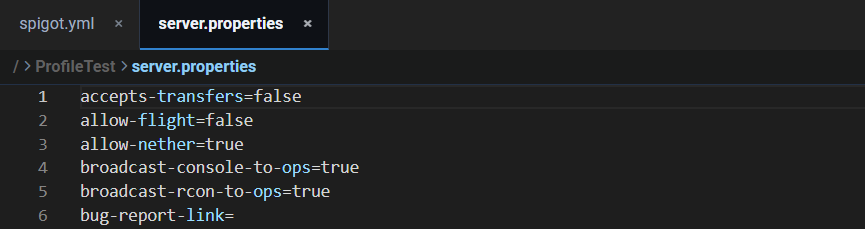
Double click to open up the file in the editor, such as paper-global.yml from the config directory. You can open up multiple files at once, all easily accessible from the editor. While making changes, you will see a notification near the bottom saying you have unsaved changes. Either click the button or use the hotkey to save the changes. On the right-side, you will see a preview of the entire file with its contents. You can click through that to jump around in the file, making navigation easy for large configurations.
Common Issues
This error will occur when you are entering an incorrect password during the FTP File Access login step. Ensure that you are using the password used for your panel, rather than your billing account. Additionally, check that you are typing the password correctly and the caps-lock is not accidentally enabled.
As mentioned previously, the Apex panel FTP is primarily used for managing your server files, rather than larger downloads or uploads. If an upload is taking too long or a file does not have the option to be downloaded, it is likely too large. In this case, you will need to use an external FTP client as detailed below.
Introduction to External FTP Clients

The second method of managing your server files is through an external FTP application. While some believe it to be more tedious, it excels in uploading or downloading large files that the Panel FTP cannot handle. Additionally, the click + drag functionality can easily relocate entire files and folders into a different directory faster than the panel. For directly editing files or to unzip, the PanelFTP will provide a better experience.
How to Connect with an FTP Client
- On the Apex panel, enter the
FTP File Accessand stay on the login page.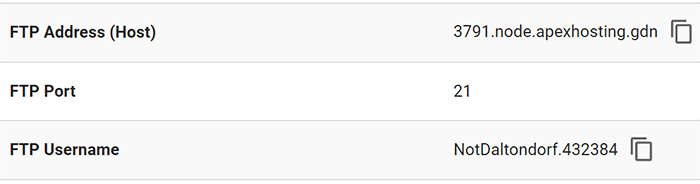
- Download and launch your desired external FTP client.
- Within the program, enter your connection details from the login page.
Address/Host – The connection address for the FTP to reach the server.
Port – The FTP port (21), separate from your server port.
Username – Your listed FTP username, separate from your panel username.
Password – The password used to log into the panel. - If a message prompt appears, press
OkorAccept. - You should now have access to your server files.
Accessing Server Profiles
If enabled, you may be greeted by a few folders after logging in with an external FTP program. These are your server profiles, which hold the files for your various game installations. If you are attempting to modify files for a certain game, ensure you are using the correct profile folder.

Using the FTP Client
Unlike the Panel FTP, an FTP client is usually much more straightforward for uploading/downloading files. While each program may slightly differ, most will have the same abilities:
- Uploading large files directly to the server, often in a zipped format.
- Downloading large files or folders to your computer.
- Click + dragging items to upload, download, and move locations.
- Renaming or deleting server files and folders.
Common Issues
When this occurs, it often means that either your username or password has been entered incorrectly. It is important to enter the username seen on the FTP login screen, as it differs from your normal panel login. Your password, however, will be the one used on the panel normally. If issues persist, ensure you are manually typing in the password, case-sensitive, and that the caps-lock is not accidentally enabled.
If a critical error appears separately from an authentication error, this often means the information entered in either the host or port is wrong and the server cannot be reached. Like before, make sure you are using the address/host from the login page as well as the FTP port (21). Using any other information will not allow you to connect properly.
When uploading a large folder, such as a world or modpack, we highly recommend zipping it first using a program like WinRAR or 7-ZIP. This should improve both speed and stability as the server is uploading one large file, rather than many smaller files. Once a .zip is uploaded, you can then unzip it through the panel FTP as mentioned above.
Helpful Links
Top 5 FTP Clients
How to Edit Minecraft Server Files
How to Use Server Profiles





















