Your Minecraft server world holds every build, structure, and chunk of player progress. Downloading it protects all of that. The process takes two things: knowing which folder to grab and having a way to transfer it. For small worlds, the Apex FTP panel handles the job in minutes without any extra software. For larger worlds, FileZilla or another FTP client gives you a reliable transfer that won’t time out. This guide covers both methods across Java Edition, Bedrock Edition, and PocketMine servers, and explains the extra step Paper and Spigot users need for Nether and End data.
Before you start, make sure you can back up your server regularly. Downloading your world manually is a good habit, but automated backups give you a safety net between sessions.
Preparation
The following steps apply to all Apex Hosting Minecraft servers. Run through them every time you plan to download your world.
Stop the server before touching any world files. Go to your Apex server panel and press the red Stop button near the top of the page.

Scroll to the bottom of your control panel and find the World section. It has three buttons: Change World, Reset Nether, and Reset End. The text box above those buttons shows your world file name. Note it down.

Download and install an FTP client such as FileZilla. You can find a comparison of the best options in our top FTP clients guide. Connect to your server using our FTP connection guide.

Once those steps are done, you are ready to download your world. Follow the section below for your server type.
If your world is small (under about 100 MB), you may be able to download it directly from the Apex FTP panel without installing any third-party software. Skip to “Downloading Small Worlds via the Panel” if you want to try that method first.
Downloading a Java Edition World with FileZilla
Java Edition worlds sit in the root directory of your server. Stopping the server before downloading prevents data corruption from any in-progress writes.
- Login to your server using your FTP Client
- Locate the folder with the same name as your world. In our example above, the world name is mc_1_21_5_1778083.
- Drag the world folder from your server onto your desktop.
- It may take a few minutes to fully download depending on the size of the world.

Downloading a Bedrock Edition World with FileZilla
Bedrock servers store all worlds inside a dedicated worlds/ folder rather than in the server root. The world folder name follows the pattern bedrock_server_XXXXXXX, where the number is your server’s unique ID.
- Connect to your server using an FTP program.
- Once you connect to the server, locate the worlds folder and open it.
- In this directory, locate the folder with the same name as your world. In our example above our world is called bedrock_server_1778091
- Click and drag the folder onto your desktop. The folder will begin downloading immediately.
- The download may take a few minutes to complete depending on the size of the world

Downloading a PocketMine World with FileZilla
PocketMine-MP servers organise files differently from standard Bedrock servers. The world data lives inside a nested folder structure under the main PocketMine directory.
- Login to your server using your FTP Client
- Locate the PocketMine folder and open it.
- Once in the PocketMine folder, locate the worlds directory and open it.
- Find the folder with the name of the world you want to download. In our example we are using a world called pocketmine_1778036
- Click on the folder, then drag it onto your desktop to begin downloading it.
- Depending on the size of the world, the download may take a few minutes to complete.

Downloading Small Worlds via the Panel (No FTP Client Needed)
This method works for small worlds only. If your world is larger than approximately 100 MB, use FileZilla instead. The panel download can time out on large transfers.
The Apex FTP panel received a significant update in March 2026, adding a more visible Download button, copy/paste file support, and a better mobile layout. The workflow below reflects the current panel.
- In your server panel, click “
FTP File Access” at the top left corner.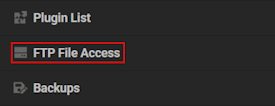
- Use your password to login, then locate your world folder(s). Example:
paper_1_21_5_3537378orbedrock_server_1778091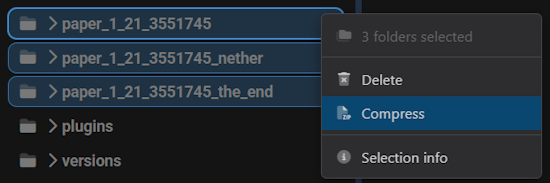
- Right-click on them and select the “
Compress” option. Note: Ctrl / Cmd + Click to select multiple folders. - Enter a name for the zip file, then click the “
Create Archive” button.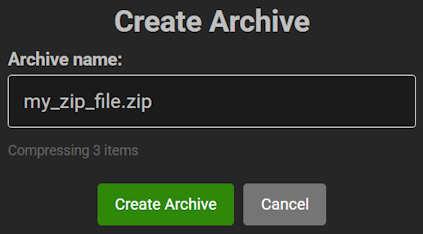
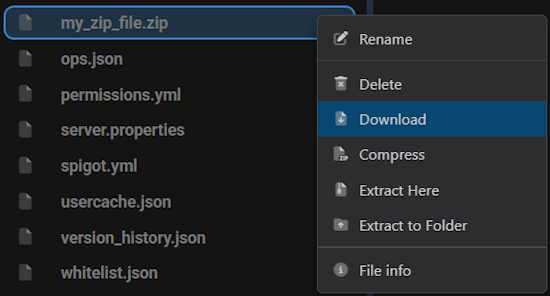
- Locate the zip file, then right-click it and click the “
Download” option. - Save this anywhere you want on your computer for later use.
Paper, Spigot, and Purpur: Nether and End Folders
Paper, Spigot, and Purpur servers split the world into three separate folders. The main folder holds the overworld and all player data. Two additional folders handle the Nether and The End dimensions. If you only download the main folder, a fresh Nether and End generate the next time that world loads.
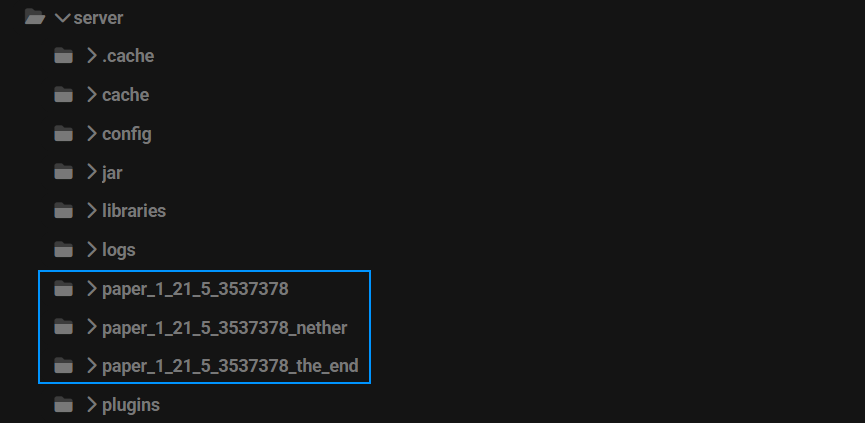
- Download the End and Nether folders for your world. In our example above our world is called paper_1_21_5_3537378. So the nether folder would be called paper_1_21_5_3537378_nether and the end would be called paper_1_21_5_3537378_the_end
- Once the download is completed, open the Nether folder and locate the folder called DIM-1
- The DIM-1 folder contains all of the data for the nether. Copy and paste it into your main world folder.
- Repeat the same process for the End folder by copying the DIM1 folder.
- Once the files are done being copied into your main world folder, you are ready to use the world in Singleplayer or on a Vanilla Minecraft server.
- The Nether and the End you had on your server will both load as normal.
Your main world folder already contains all player data (.dat files) and statistics. You only need to copy the DIM-1 and DIM1 dimension folders. If you want to upload your world to Singleplayer after this step, that guide covers the exact placement.
Common Issues
This most often happens because the wrong world folder was downloaded. Check your server for additional world folders and try each one. It can also mean the transfer did not finish. The folder may have downloaded partially. Connect via FTP and download the folder again, waiting for the transfer to reach 100% before disconnecting.
After a server is terminated, its files are deleted from the active system. Apex Hosting creates offsite backups of all servers in the network, kept for approximately a month before permanent removal. If your server was terminated within that window, contact our technical support team. The team will check whether a backup exists and send you a download link if one is available. These backups cannot be guaranteed in all cases.
FAQ
For Java Edition, the world folder sits in the root of your server and shares the name shown in the World section of your Apex control panel. Bedrock worlds are inside a worlds/ subfolder. PocketMine worlds are inside pocketmine/worlds/.
Yes. Use the FTP File Access panel built into your Apex control panel. Compress the world folder, then download the resulting zip. This works well for worlds under approximately 100 MB. Larger worlds need a dedicated FTP client like FileZilla to avoid transfer timeouts.
Yes. Downloading world files while the server is running risks getting an incomplete or corrupted copy, since the server writes to chunk files continuously during play. Stop the server first, download, then restart.
Next Steps
With your world downloaded, the most common follow-up tasks are setting up regular automated backups and uploading the world to a new server or Singleplayer. Our guides on how to backup your server and how to restore a backup cover both directions.