


Overview
When playing on a Minecraft server, you will find that most owners choose to add mods or plugins. Both of these options are great, but are not compatible with each other by default, requiring you to choose between them. This can be tedious, leaving players to wish for a solution to use both at once. Introducing SpongeForge, a type of mod compatible with Forge that allows you to install and use SpongeForge plugins alongside mods. While bukkit-based plugins do not work with SpongeForge, there are many popular plugins that have been created specifically for SpongeForge. With Apex Hosting, getting started with SpongeForge is easy, so we have created this guide to help you get started.
Downloading SpongeForge
- Visit the SpongeForge download page.
- Use the dropdown menu at the top to select your desired version.

- Following this, locate your desired download version.
- Use the
Downloadbutton on the right-hand side.
- Save the .jar file to a safe location, as it will be needed shortly.
Server Installation
- Navigate to the Apex Server Panel, then stop the server.
- Scroll down to the
Game Filesection, then open the dropdown menu.
- Ensure you are running a compatible Forge version, such as 1.16.5 or 1.12.2.
- Afterwards, enter the
FTP File Accesson the left-hand side. - Locate or create the
modsfolder, then enter it.
- Press
Uploadin the top-left, then drag + drop the SpongeForge .jar.
- Once at 100% uploaded, return to the
modsfolder.
Renaming the File
In most cases, you will need to rename the SpongeForge .jar file so it will load before any other mods on the server.
- From the
modsfolder, select your SpongeForge .jar file. - Press the
Renamebutton at the top for the next prompt to appear.
- Add
_AAto the beginning of the file name.
- After this, press the
Submitbutton for the changes to take effect. - Return to the main panel page, then restart the server.
Your Forge server will now start up with SpongeForge enabled! This will allow you to install a variety of Sponge plugins to your server, many of which aim to provide bukkit-like functionality.
Downloading SpongeForge Plugins
- Head to the official SpongeForge plugin page and look for your desired plugin.

- Click the plugin to view its page and check for any dependencies.
- Afterwards, head to the
Versiontab to check for the download versions.
- Next to each download, you can check which version of Sponge is required.
Sponge 8 – 1.16.5
Sponge 7 – 1.12.2
Sponge 6 – 1.11.2
Sponge 5 – 1.10.2
Etc. - When you are ready, click the version, then use the
Downloadbutton. - Like before, save the .jar file to a safe location on your computer.
Installing Sponge Plugins on the Server
- Visit the Apex Panel page, then stop the server.
- Enter the
FTP File Access, then log in.
- Locate and access the
modsfolder from previously. - Press
Upload, then drag + drop your Sponge plugins. - Once they are at 100% uploaded, return to the main panel page.
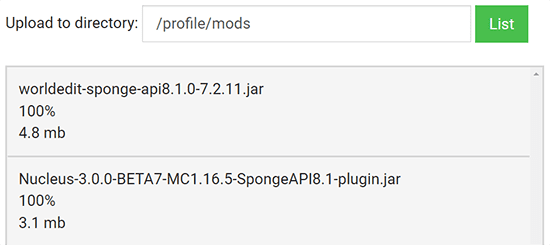
- Restart the server for your Sponge plugins to be loaded.
Recommended Sponge Plugins
LuckPerms – A permissions plugin for different groups.
Nucleus – A SpongeForge fork of the Essentials plugin.
GriefPrevention – The official Sponge version of the GriefPrevention plugin.
WorldEdit – Shape your world with commands and schematics in-game.
Common Issues
Server is crashing on startup after plugins are added:
If the server is crashing on startup after you add the plugins, it is likely due to either a missing dependency, wrong version, or a corrupted jar file. Make sure you check the console for further information. Check all of the plugins you added and confirm that they are the correct version and that they do not have any dependencies. If you confirm all of this and it still doesn’t start, remove all the plugins and add them one by one to narrow down exactly which one is the issue. This is time-consuming but effective too.
Server is crashing after adding Spongeforge:
If your server is crashing after Spongeforge was added, it is likely due to having the wrong version of Sponge, a world issue, or mods with compatibility issues. Double-check that you have installed the correct version of Sponge. If you changed your server version but kept the existing world, this may be the cause of the crash. To fix this, visit your panel page, press the Change World button, then enter a new name. Once this has been done, restart your server to try again.
Server is stuck loading:
If you have gone through and modified your mods, especially after deleting mods, then your server may wait for confirmation before loading the world. To do this, enter your server console, then type in /fml confirm. This should allow your world to load up normally to begin playing. If issues still occur after this, you are likely facing a crash, which is discussed in the previous common issue.





















