Cobblemon brings Pokémon into Minecraft as a fully integrated mod — Pokémon spawn across biomes, you catch and train them in turn-based battles, and the same world you build in becomes your Pokédex hunting ground. The mod runs on Minecraft 1.21.1 using Fabric or NeoForge, and version 1.7.3 includes over 850 catchable species. If you want to run Cobblemon on a Minecraft server for yourself or your friends, this guide walks through downloading the mod, installing it on your client and server, and covers every key game mechanic.
How to Download Cobblemon
Cobblemon is available on both CurseForge and Modrinth. Both platforms host the latest stable release.
- Navigate to Cobblemon on CurseForge or Modrinth, then click the “
Files” option near the top.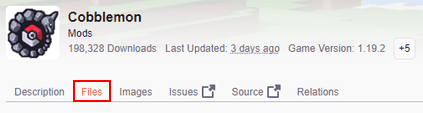
- Scroll down and locate your desired version, then select it.
- Press the “
Download” button on the right-hand side of your screen.
- Save this file somewhere easily accessible for later.
You also need the correct dependency for your mod loader. For NeoForge, download Kotlin for Forge. For Fabric, download Fabric API. Without these dependencies, Cobblemon will not load properly.
Client Installation
Before playing Cobblemon, install NeoForge or Fabric on your Minecraft launcher. Make sure the loader version matches Minecraft 1.21.1. If you are unsure which to choose, see our Forge vs Fabric comparison to help decide. Once your loader is installed, follow these steps:
- Open your Minecraft launcher, then click “
Installations” at the top.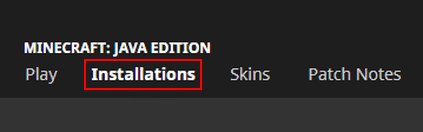
- Locate your installed NeoForge or Fabric profile and press its “
Folder” icon.
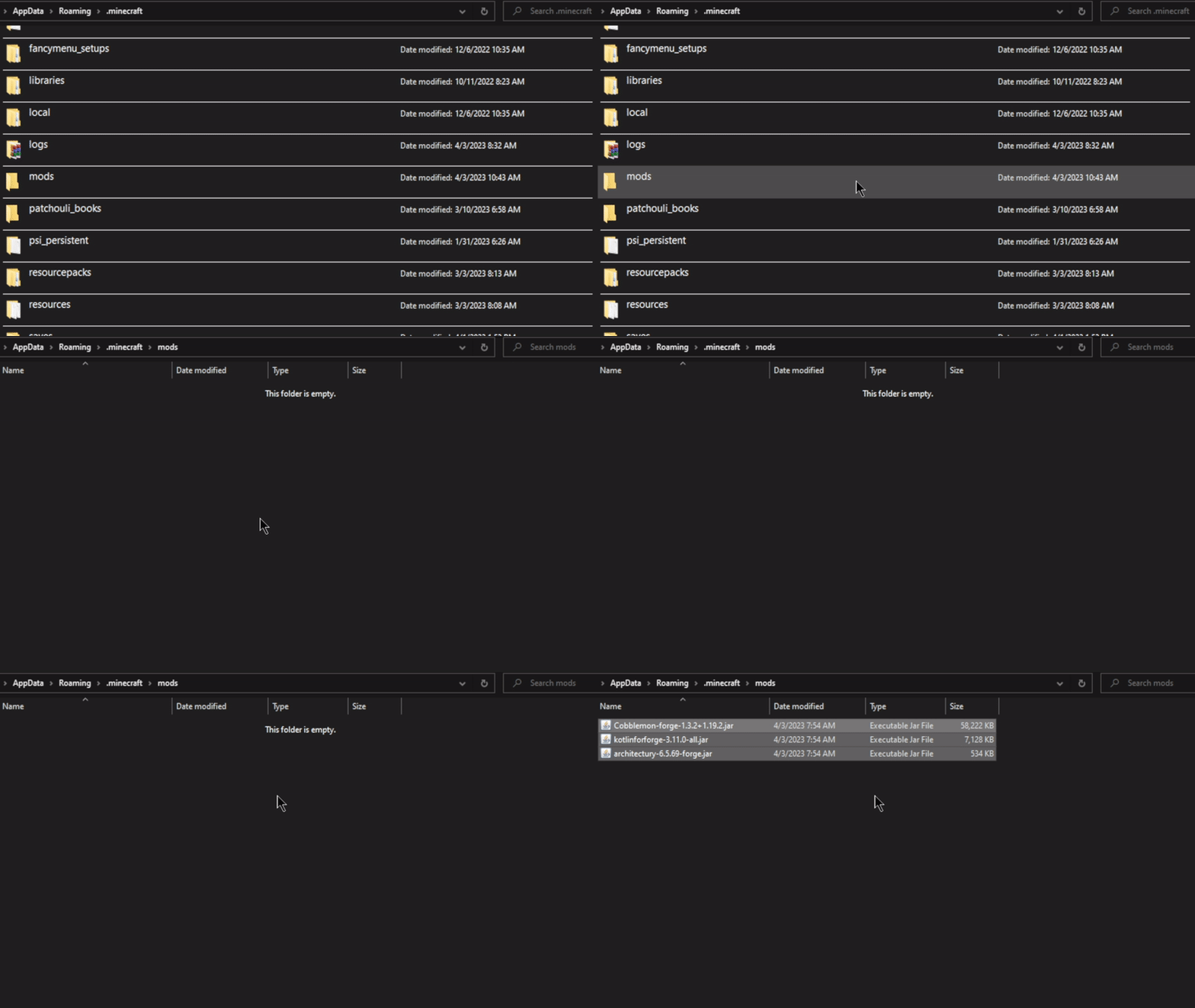
- In the newly opened folder, enter the “
mods” directory.
Note: If the mods folder does not exist, create it. - Drag and drop all the downloaded mod files into this folder.
- Return to your modded profile and click “
Play” to begin loading it.
Server Installation
Installing Cobblemon on your Minecraft server requires changing the Game File to NeoForge or Fabric first. Once that is done, follow these steps to upload the mod files through the Apex panel:
- Head to your Apex server panel and click “
FTP File Access” near the top left.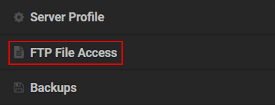
- Type your “
Password” in the text box, then click “Login.”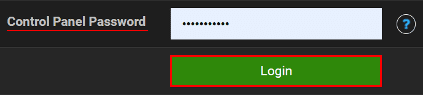
- Locate and enter the “
mods” directory from the list. - Press “
Upload” at the top left corner of your screen. - Drag and drop the mod files into the upload area, then wait for them to reach “
100%.”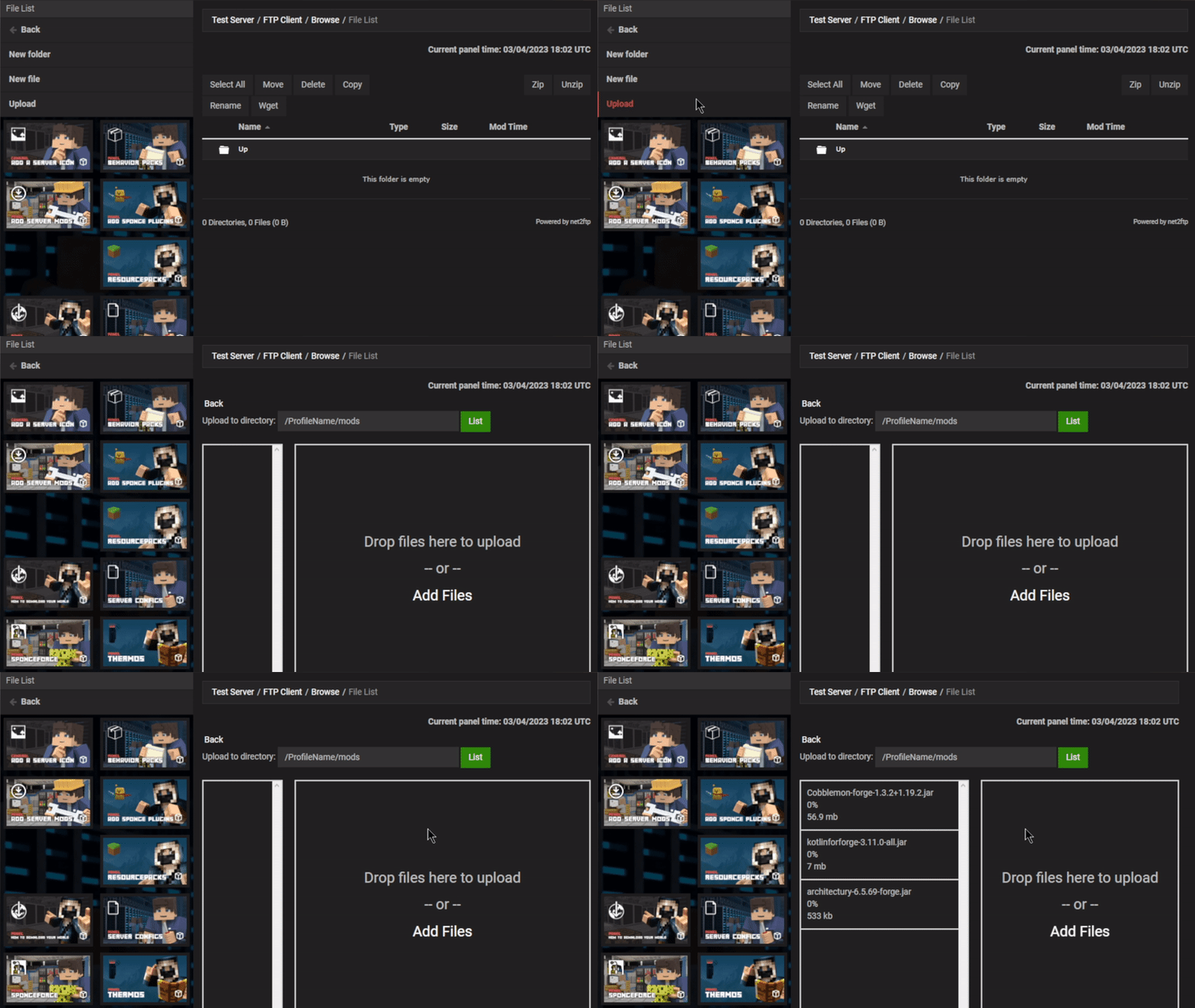
- Return to the main panel and “
Restart” the server to load the changes.
Modbox Installation
As an alternative to the manual installation, you can install Cobblemon on your server using Modbox, our built-in mod browser with direct CurseForge integration.
- Log in to your Apex Hosting account and open your Minecraft server panel.
- On the left side, select
Server Configuration > Modbox.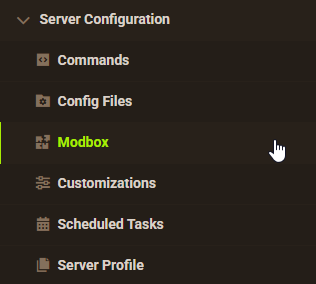
- Search for the mod you want and open its mod page.

- Select the recommended version for your server, then click
Install.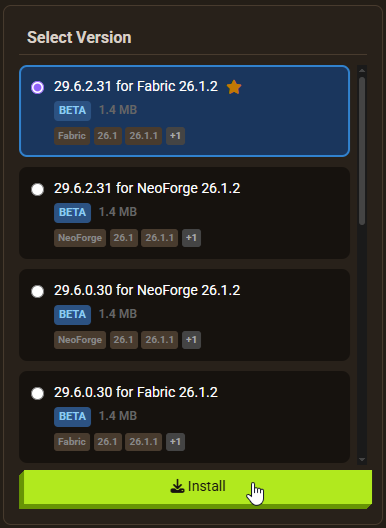
Note: Modbox automatically matches mods to your server's installed version, but does not install dependencies automatically. For more details on using Modbox, check out our full Modbox guide.
Cobblemon requires a dependency depending on your loader: NeoForge users need Kotlin for Forge, while Fabric users need Fabric API. Search for and install the appropriate one individually through Modbox using the steps above, before installing Cobblemon itself.
Getting Started

When you enter the world, Pokémon will be running around. They are passive unless you initiate combat. You can catch them with Poké Balls to build your party, or store them in a PC block for later. Many new items and blocks come with Cobblemon — installing JEI or a similar mod is useful for browsing all crafting recipes.
Before catching or fighting any Pokémon, press “M” on your keyboard to open the starter selection menu. This lets you choose from a range of starter Pokémon from generations 1 through 9. Take your time reviewing their types, abilities, and evolution paths before choosing. Once you have a starter, pressing M again opens your Pokémon party menu.

Types of Pokémon

Cobblemon has over 850 implemented Pokémon across generations 1 through 9. Each species spawns in biomes that match its type — water types appear near oceans and rivers, rock types in mountains and caves, and so on. You will encounter common low-level species regularly, while rare species require more searching. As you explore, use your Pokédex (crafted in-game) to record what you find. Our Cobblemon modpacks page has pre-built server options if you want a curated experience with additional mods.
Pokémon Combat
When you engage a wild Pokémon or challenge another player’s team, the game switches to a turn-based battle screen. You have four options: “Fight,” “Switch,” “Catch,” and “Run.”

Select moves to deal damage, or switch your active Pokémon for a better type match. Fire types lose to water types, water loses to electric, and so on. If your Pokémon is low on health, run away to avoid fainting. When you are ready to catch a wild Pokémon, throw a Poké Ball during the battle.
Apricorn Trees

Crafting Poké Balls requires Apricorn, a material found hanging on Apricorn trees. Several varieties exist, each corresponding to different Poké Ball types. The trees also provide unique wood blocks for building and decoration. Apricorns are not abundant in the wild, so building a small Apricorn farm early in your playthrough saves a lot of time later.
Poké Balls
Cobblemon includes 32 Poké Ball types, from the basic Poké Ball to the Master Ball. The Master Ball, crafted with Netherite and special materials, catches any Pokémon without fail. Other balls offer situational advantages — higher base catch rates, bonuses for certain species, or on-capture effects. Most recipes require Apricorn and its variants.

Pokémon Storage

Your party holds six Pokémon. Once that fills up, building a PC block gives you access to a full storage system with 30 boxes, each holding up to 30 Pokémon. From the PC, you can organize, sort, and swap between stored and active Pokémon. Building a PC early is worth the effort, especially if you are trying to complete the Pokédex.
Healing Station
When your Pokémon take damage in battle, use a Healing Machine to restore them. Place the machine in your base and right-click it when it is charged to heal your entire party at once. The machine does not require fuel or an external power source, but needs time to recharge between uses. Crafting multiple healing stations in different locations reduces downtime during long exploration sessions. Use JEI to look up the crafting recipe.

New Minerals

Cobblemon adds several evolution stones and crafting materials to the world, including Dawn Stone, Dusk Stone, Shiny Stone, Thunder Stone, and Sun Stone. Each triggers specific Pokémon evolutions — a Thunder Stone evolves Pikachu into Raichu, for example. Some evolution items can also be crafted from other in-game materials.
Pokémon Evolution

Once you have the right evolution item or your Pokémon has leveled up enough, press “M” on your keyboard with the required items in your inventory to open your party menu. Select your Pokémon and navigate to its “Info,” “Moves,” or “Stats” tab. If it is ready to evolve, an “Evolve” button appears in the bottom left corner. Press it and confirm the change near the top right area. Evolution increases your Pokémon’s stats, HP, and available moves.
Configuration
You can customize Cobblemon’s behavior by editing its configuration file through the FTP panel. This lets you adjust spawn rates, level ranges, and other settings.
- Head to the “
FTP File Access” area, then “Login” with your “Password.” - Navigate to the following directory:
.../config/cobblemon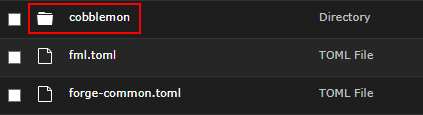
- Press “
Edit” on the “main.json” file to open its contents.
- Make any necessary changes, then click “
Save” at the top.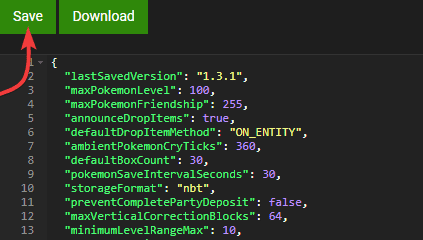
- Return to the main panel and “
Restart” the server to apply the changes.
Common Issues
Players unable to connect are usually entering the wrong IP Address:Port or Subdomain. Check the main panel for the correct connection values. Players who have not installed Cobblemon and its dependencies on a NeoForge or Fabric profile will also be blocked from joining. If nobody can connect, check the server logs for errors.
If Cobblemon fails to load, check that all dependencies are installed and match the correct version. NeoForge requires Kotlin for Forge; Fabric requires Fabric API. A common mistake is downloading a dependency version that does not match Cobblemon’s target Minecraft version. Restart the server after uploading files, and reboot the launcher after installing mods on the client side.
Useful Links
Cobblemon on CurseForge
Official Cobblemon Website
How to Optimize a Modded Minecraft Server
Installing Mods to a Minecraft Server