

Are you tired of running between endless rows of double chests, opening and closing each one just to find that one stack of cobblestone? We’ve all been there and always wondered if there’s an easy solution. Good news! There’s a powerful vanilla-friendly way to organize your items without having to build a complex system. Introducing Tom’s Simple Storage for Minecraft Forge and Fabric – which helps you organize, search, and craft. In this Apex Hosting guide, we’ll showcase the mod and how to install it on your Minecraft server 🔥
Go to Tom’s Simple Storage Setup
Tom’s Simple Storage Showcase
With Tom’s Simple Storage, there aren’t complicated machines or systems to worry about. There are terminals that control everything and connectors that do it all, along with extra features too. For instance, you can link chests and barrels to a shared network that you can access. It even allows you to search through it to find exactly what you need.
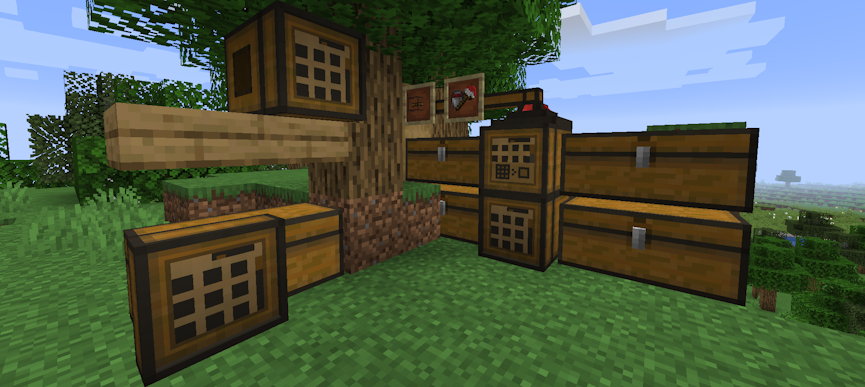
Simply access the main terminal and look up an item, then boom – you can grab it. Whether you have a small group of chests or an entire warehouse, you can easily organize and get the items you want with ease. There’s even a crafting terminal that lets you create items without leaving the searchable inventory.
Getting started is surprisingly simple. You only need a few key blocks to build your network.
The Storage Terminal
This is the “brain” of your system and your main point of access. It’s the block you will right-click to see every single item in your connected network. It has a searchable inventory screen that looks and feels just like a regular chest, but it contains everything.
The Crafting Terminal
This is an upgraded version of the Storage Terminal. It includes the same searchable inventory, but it also has a built-in crafting grid. Best of all, it can pull items from your storage network to help you craft, meaning you don’t need to fill your personal inventory first.
The Inventory Connector
This is the block that does the magic. You place this block touching any inventory you want to add to the network (like a chest or a barrel). The connector will automatically scan that chest and make its contents available to the terminal.
The Storage Connector
Think of this as the “pipe” or “cable” for your system. You use this block to link all your Inventory Connectors together. This allows you to snake your network around your base, connecting chests in your workshop to barrels in your basement, all leading back to your single Storage Terminal.
There are more features too, which can further expand your storage network with this mod.
Tom’s Simple Storage Setup
The following sections will show you how to download, install, and set it up in Minecraft.
How to Download
- Navigate to Tom’s Simple Storage (Forge | Fabric) and download it.
- Make sure to choose the right file for your
Mod Loader&Game Version. - Save the mod file somewhere easily accessible on your computer.
⚠️ Fabric API is required for Fabric users. We also recommend Just Enough Items.
How to Install
If you haven’t already, install Fabric or Forge on your Minecraft launcher to run the mod. Alternatively, you can install a third-party launcher such as CurseForge or Modrinth.
Follow these instructions if you use the default launcher for Minecraft.
- Make sure Fabric or Forge is installed.
- Open the Minecraft Launcher →
Installationstab. - Click the folder icon next to your Fabric or Forge profile.
- Open (or create) a folder named
mods. - Move the Tom’s Simple Storage .jar file and required mods into that folder.
- Launch Minecraft with your Fabric/Forge profile.
Follow the steps below if you use CurseForge, Modrinth, or another launcher.
- Open your launcher and select your modpack or profile.
- Click
Add More ContentorInstall Mods. - Search for “Tom’s Simple Storage”.
- Click
Install– dependencies will automatically install if required. - Launch the game to start using the mod.
Server Setup
Before getting started, purchase a server if you don’t already own one.
- Head towards your Apex server panel and click the
FTP File Accessbutton. - Continue to enter your
Passwordin the text box, then pressLogin. - On the next page, locate and click the
modsdirectory once found. - Drag all .jar files into this folder, then wait for them to reach 100%.
- Return to the main panel and restart the server.
👇 For more detailed information, follow the guide below.
How to Install Mods to Your Minecraft Server
Your New Central Storage Hub
Tom’s Simple Storage makes organizing your world easier than ever, giving you one clean, searchable network for all your items. With just a few simple blocks, you can upgrade any base into a smooth, efficient storage system. Now that you know how to set it up, you’re ready to spend less time sorting and more time exploring!





















