Your Java server and your friend’s Bedrock client speak different network protocols. By default, the connection fails. GeyserMC is a plugin for Paper and Spigot servers that bridges this gap, translating Bedrock’s network traffic into Java-compatible packets in real time. Once installed, players on Xbox, PlayStation, Switch, mobile, and Windows can join your server alongside Java Edition players with no separate setup on their end. Apex Hosting supports GeyserMC with both an automatic installer and a manual setup path. This Apex Hosting guide covers both.
What Is GeyserMC?
GeyserMC is an open-source plugin that acts as a protocol bridge between Minecraft Java Edition servers and Bedrock Edition clients. It runs on your Java server and listens on a separate UDP port for incoming Bedrock connections. When a Bedrock player connects, GeyserMC translates their packets in real time so the Java server treats them as a regular player.
The plugin does not modify the Java server software itself or require changes on the Bedrock player’s side. They connect using the standard Bedrock server address format, the same way they would join any other Bedrock server.
GeyserMC requires a second plugin, Floodgate, to work properly for most players. The section below explains why.
Geyser vs Floodgate: What You Need
GeyserMC alone lets Bedrock players join, but only if they also own a Java Edition account. Most Bedrock players do not own Java, so without Floodgate they would be blocked at authentication.
Floodgate is a companion plugin that handles authentication for Bedrock players using their Microsoft account instead of a Java account. Together, Geyser and Floodgate let any Bedrock player join without a separate Java purchase.
In short: install both. Geyser handles the protocol translation; Floodgate handles the login. Apex’s automatic installer sets up both plugins at once. The manual method requires downloading each separately.
Automatic Server Installation
Apex’s server panel includes a one-click Geyser installer that configures the plugin automatically, with no manual config required.
- Access your Apex server panel, then stop the server.
- In the left-hand menu, enter the Customizations tab.

- Open the dropdown menu next to the Geyser Installer area and select
Bukkit.
- When prompted, choose
Queue Installation, then restart the server.
This will automatically configure GeyserMC to run using your existing IP and Port. You can confirm it has worked by checking the server console and looking for a message from the plugin.

If you used the automatic installer, you can skip ahead to the For Servers Running 1.19.1 or Later section below. Manual configuration is not needed.
Manual Server Installation
If you need to install Geyser manually, follow both steps below: first download the plugin files, then upload them to your server.
Geyser + Floodgate Download
- Visit the GeyserMC download page and locate the
Geyser-Spigot.jarlink.
- Click the link and save the
.jarto a safe location for later. - Additionally, visit the Floodgate download page.
- Download and save the
floodgate-spigot.jarlike before.
Manual Server Setup
With both .jar files saved, upload them to your server’s plugins folder.
- Navigate to your Apex panel page, then stop the server.
- Scroll down to the Game File section and open the dropdown. Ensure you are running a plugin-compatible server type, such as PaperMC or Spigot.

- Afterwards, enter the FTP File Access page in the left-hand menu and log in.
- Enter the plugins folder, then press the
Uploadbutton in the top-left.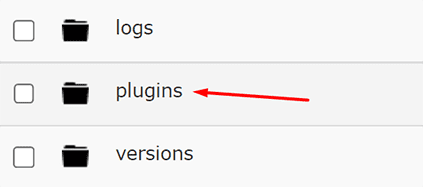
- Drag and drop the
.jarfiles into the right-hand side.
- Once uploaded to 100%, return to the main panel page.
- Restart the server to load the default files for GeyserMC.
After the restart, GeyserMC generates its configuration files. Manual installation requires editing the config before Bedrock players can connect.
How to Configure GeyserMC
Manual installations require a few changes to the GeyserMC config file before the plugin works. The automatic installation skips this step, though all servers running Java 1.19.1 or newer must complete the section below regardless of which installation method they used.
For Servers Running 1.19.1 or Later
Minecraft 1.19.1 introduced a chat signing system that blocks Bedrock players from joining by default. Disabling this setting allows full crossplay. Servers running 1.19.3 and newer can leave the setting enabled, but Bedrock players will have limited chat functionality. Disabling it removes those limitations.
- From the main panel, enter the Config Files in the left menu.
- Here, locate and click the Server Settings option.
- Scroll down to find the
Enforce secure profilesetting.
- Switch the setting to
Disabled, then press Save at the bottom. - Restart the server when prompted to load these changes.
Accessing the Configuration
- From the Apex panel, stop the server.
- Return to the FTP File Access like before and log in.
- Navigate through the
/plugins/Geyser-Spigot/directories.
- Locate the
config.ymlfile, then press Edit to the far-right to open the editor.
Changing the IP and Port Settings
The GeyserMC config file has two sections to update: Bedrock (the port Bedrock players connect to) and Remote (the port that points back to your Java server). GeyserMC uses UDP for the Bedrock connection, which is a different protocol than Java’s TCP. Both sections must match your server’s actual IP and ports.
- Locate the
bedrocksection of the config file.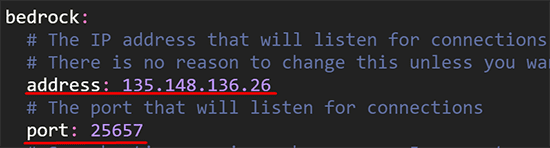
- Change the address to match your server’s IP address.
- Adjust the port to a random port, such as your server’s existing one.
- Proceed to find the
remotesection of the file.
- Keep the address set to
auto, then change the port to your 5-digit server port. - Finally, switch the
auth-typetofloodgate. - Once this is complete, press Save, then restart the server.
Geyser Extension for Xbox
Players on Xbox and Bedrock Edition for Windows can join a Geyser server through the standard server address method, but the MCXboxBroadcast extension makes it easier: your server appears in their Friends tab inside Minecraft, so they can join without typing an IP address.
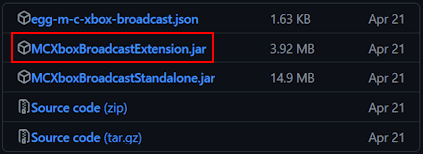
- Navigate to MCXboxBroadcast on GitHub and find the latest release.
- Click the
MCXboxBroadcastExtension.jaroption to download.
- Save this on your computer, then upload the extension to the following directory on your server:
…/plugins/Geyser-Spigot/extensions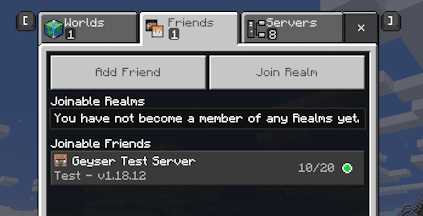
- Restart the server and open the console, then look for the authentication message.
- Link any Microsoft account with the provided code and link.
- Continue to follow this account on Xbox LIVE.
- Launch Minecraft and check the Friends tab to see the server appear.
A standalone version of MCXboxBroadcast is also available and may offer better results depending on your setup.
How Bedrock Players Connect
With GeyserMC and Floodgate installed, players on Xbox, PlayStation, Switch, iOS, Android, and Windows can connect to your Java server. The connection method varies by platform. Players on PlayStation 4, PlayStation 5, Xbox, or Nintendo Switch can follow the Apex guides for joining a Bedrock Edition server on PS4 or PS5 and joining a Bedrock server on Xbox and Switch. For PC and mobile, the steps below apply.
- Start Minecraft Bedrock, then navigate to the Servers section and add a new server.

- Enter the IP and Port adjusted in the Bedrock section from earlier.
- Once done, you can attempt to join the server.

- If successful, you will join the server and can play alongside Java Edition players.
Once connected, Bedrock players share the same world as Java players. Plugins like EssentialsX also apply to them, though some features, including command auto-completion, are not available for Bedrock clients.
Common Issues
This error appears in the console when another process is already using the port set in the GeyserMC Bedrock config. The fix is to change the Bedrock port in config.yml to a different value and restart. GeyserMC uses UDP, so the port does not need to match the Java server’s TCP port.
This usually means Floodgate is not installed, or the auth-type in config.yml is not set to floodgate. Confirm that floodgate-spigot.jar is in the plugins folder, the server restarted fully after the upload, and the auth-type line in the Geyser config reads auth-type: floodgate.
GeyserMC loaded twice or the previous session did not shut down cleanly. Do a full server stop from the Apex panel, wait until the console shows the server has stopped, then start it again.
On servers running 1.19.3 or newer with enforce-secure-profile enabled, Bedrock players join successfully but lose access to signed chat. Disable the Enforce secure profile setting in Config Files, as shown in the setup section, and restart.
If Bedrock players get a timeout error, check that the UDP port set in the GeyserMC Bedrock config is open. Some firewall configurations block UDP traffic by default even when the TCP port for Java is open. If you are unsure which ports are assigned to your Apex server, they appear on the main panel page.
GeyserMC requires the Java server to support the current Minecraft version. For servers running older versions, installing ViaVersion alongside GeyserMC allows the plugin to bridge the version gap and accept Bedrock connections.
Conclusion
With GeyserMC and Floodgate installed, Bedrock and Java Edition players share the same server. Players on Xbox, PlayStation, Switch, mobile, and Windows all connect through their standard Bedrock client with no extra software. After Minecraft updates, you may need to update the GeyserMC and Floodgate .jar files on your server. Repeat the download and upload steps to replace the old files with the newer ones.
Helpful Links
- GeyserMC Official Site
- GeyserMC Wiki
- MCXboxBroadcast on GitHub
- How to Add a Plugin to Your Server
- ViaVersion Plugin Guide
- SkinsRestorer Plugin Guide
Frequently Asked Questions
Can Java and Bedrock Players Play Together on the Same Server?
Yes. With GeyserMC installed on a Java server, Bedrock players on Xbox, PlayStation, Switch, iOS, Android, and Windows can join and play alongside Java Edition players in the same world.
Do Bedrock Players Need a Java Edition Account to Join?
No. The Floodgate plugin handles authentication using the Bedrock player’s Microsoft account, so no separate Java Edition purchase is needed. Install both GeyserMC and Floodgate for full crossplay support.
What Port Does GeyserMC Use?
GeyserMC listens on a UDP port for Bedrock connections, separate from the TCP port Java Edition uses. You can assign any available UDP port in the GeyserMC config.yml. The port you choose is what Bedrock players enter when adding the server.
Does GeyserMC Work with All Minecraft Versions?
GeyserMC supports current Minecraft versions and is updated regularly. For Java servers running older versions (1.20 and earlier), installing ViaVersion alongside GeyserMC extends compatibility.
Can Xbox Players Join Without Typing a Server Address?
Yes. The MCXboxBroadcast extension links your server to a Microsoft account so it appears in the Friends tab inside Minecraft. Xbox and Bedrock Edition for Windows players can then join directly from that tab without entering an IP address.
Is GeyserMC Free to Use?
Yes. GeyserMC is open-source and free to download. Apex Hosting includes a one-click Geyser installer in the server panel at no additional cost, with no configuration required when using the automatic method.