Overview
When playing on a server, you may occasionally notice that some include elevators. Oftentimes, these are built into the spawn-hub and are used to access separate parts of the structure. For example, a multi-floor shop may feature elevators for quick access. Whether you use them for a creative build, in a hub, or anything else, the Simple Elevators plugin allows you to quickly and efficiently create elevators on your server. With Apex Hosting, installing a plugin is very easy, so today we will show you how to get started.
Modbox Installation
IMPORTANT: Make sure to have Spigot or Paper selected in the Game File option on your server panel so plugins can work properly.
- Head towards your Apex server panel for the server.
- Navigate to
Server Configuration > Modboxon the left.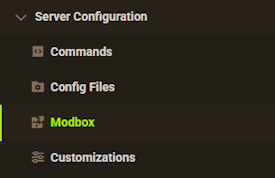
- Choose the version and search for the plugin you want, then select it.
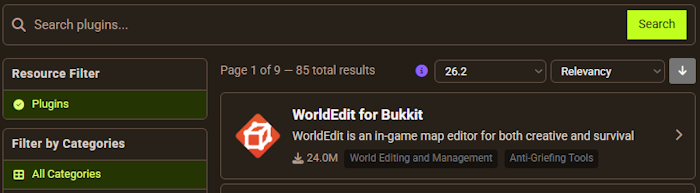
- Click
Installon the left and wait for it to be installed. - Restart the server to load the plugin. Repeat this process for any other plugins.
Manual Installation
Download Simple Elevators on Bukkit or Spigot and follow these steps:
- Download the plugin file from the link above.
- Head towards your Apex server panel for the server.
- Locate the Game File option, then select Spigot or Paper if you haven't already.
- Navigate to
File Management > FTP File Accessand login. - Drag + drop the .jar file in the
pluginsdirectory. Alternative: Click theUploadbutton and select the file. - Wait for this to finish, then return to the main panel.
- Restart the server and the plugin should load properly once you join.
Getting Started
Once in-game, you can begin to find your spot for an elevator. To create one, use the command /elevator create [Combination #] [Distance #] to place an elevator at your feet, with the floor above it being a chosen distance.

Ex. /elevator create 1 10
Default Combinations
When making an elevator, you can choose a combination number which will change the style of the elevator. These can be customized, but the default is the following:

Style 1 – Redstone block bottom with a quartz block top.
Style 2 – Iron block bottom with a quartz slab on the top.
Style 3 – A block of blue wool with a red carpet on top of it.
Style 4 – A dirt block with granite on top of it.
Commands
/elevator help - Displays all elevator commands.
/elevator create [Combination #] [Distance #] - Creates a new elevator at a player’s feet.
/elevator list - Lists all available combination styles.
/elevatoradmin help - Displays all admin elevator commands.
/elevatoradmin reload - Reloads the plugin’s configuration files.
/elevatoradmin info - Displays plugin information, such as current versions.
Configuration
As if there wasn’t enough, you are also able to configure the entirety of the plugin. You can change or create elevator styles, create a max distance, or alter every message. You can do this by:
- Navigate to your Apex Server Panel, then stop the server.
- Proceed to the “FTP File Access” and log in.
- Access the “plugins” folder, then the “Elevator” folder.
- Press “edit” to the far-right of either .yml file to edit it.
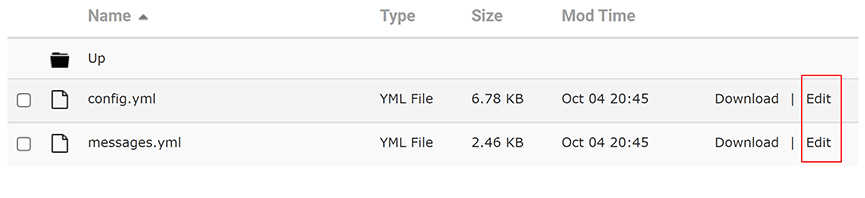
- Once the changes have been made, press “save”, then start the server.
Permissions
elevator.use - Permission to all elevator combinations. All players have this permission by default.
elevator.use.[combination] - Permission to use a specific elevator combination.
elevator.distance.[distance] - Give a player a unique max elevation distance.
elevator.bypass.cooldown - Bypass the configured elevator cooldown.
elevator.bypass.distance - Permission to ignore the configured max distance.
elevator.update - Players with this permission are notified of new updates.
Common Issues:
The plugin commands don’t appear in-game:
Oftentimes, this occurs because the plugin was not properly loaded by the server. Ensure you are running a plugin-compatible version. Otherwise, double check that the plugin .jar is in the plugins folder, or it cannot load.
The plugin doesn’t work after changing the configuration file:
Generally, this means there is a problem with the formatting in the config file. We recommend using a YAML validator to make sure there are no issues with the formatting, then saving and restarting once fixed.
Players cannot use the commands:
In order for a player to use plugin commands, they will need to be given permission through a permissions plugin. You can use the aforementioned permissions to grant and customize player commands