Overview
While you chat in your Minecraft server, you will notice that the text is plain and features no colors or symbols. This is problematic when using LuckPerms to display ranks or prefixes, as they will not appear in-game by default. Luckily, the LuckPerms Chat Formatter (LPC) plugin will instantly display your existing prefixes and suffixes without any need for configuration. If the default usage isn’t enough, you can alter the default appearance of the LPC format to better suit your desires. In this Apex Hosting resource, we’ll walk you through the steps to get started with formatting your Minecraft chat.
Modbox Installation
IMPORTANT: Make sure to have Spigot or Paper selected in the Game File option on your server panel so plugins can work properly.
- Head towards your Apex server panel for the server.
- Navigate to
Server Configuration > Modboxon the left.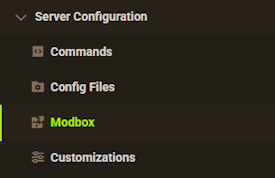
- Choose the version and search for the plugin you want, then select it.
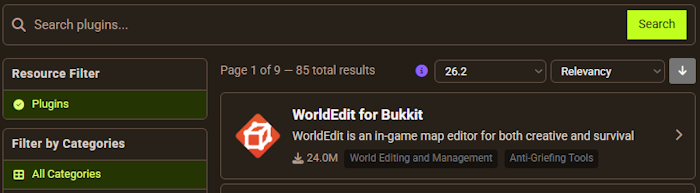
- Click
Installon the left and wait for it to be installed. - Restart the server to load the plugin. Repeat this process for any other plugins.
Manual Installation
Download LuckPerms Chat Formatter on Bukkit or Spigot and follow these steps:
- Download the plugin file from the link above.
- Head towards your Apex server panel for the server.
- Locate the Game File option, then select Spigot or Paper if you haven't already.
- Navigate to
File Management > FTP File Accessand login. - Drag + drop the .jar file in the
pluginsdirectory. Alternative: Click theUploadbutton and select the file. - Wait for this to finish, then return to the main panel.
- Restart the server and the plugin should load properly once you join.
Getting Started
The LPC plugin was released around 2019 by wikmor and has accumulated over 100,000 downloads. The plugin’s author stated that they wanted to create a simple yet effective chat formatter involving LuckPerms (LP) for Minecraft 1.7.10 to 1.19 versions. Anyone who uses that permissions management plugin tends to be directed towards LPC. It should be noted that the creators of LP did not make the chat formatter plugin its official one, but nonetheless it’s a great tool to use as a server owner.
Configuration
The only way to format your chat is by editing the plugin’s file after you restarted the server. There are no commands besides /lpc reload, which applies any file changes to the chat. You may learn how to locate and edit the file by reviewing the instructions down below.
- Head towards your Apex server panel and press the FTP File Access button.
- Login with your password, then click the
pluginsfolder. - From there, enter into the
LPCdirectory and locate theconfig.ymlfile. - To the far right of the file, press Edit to begin viewing the chat’s format settings.
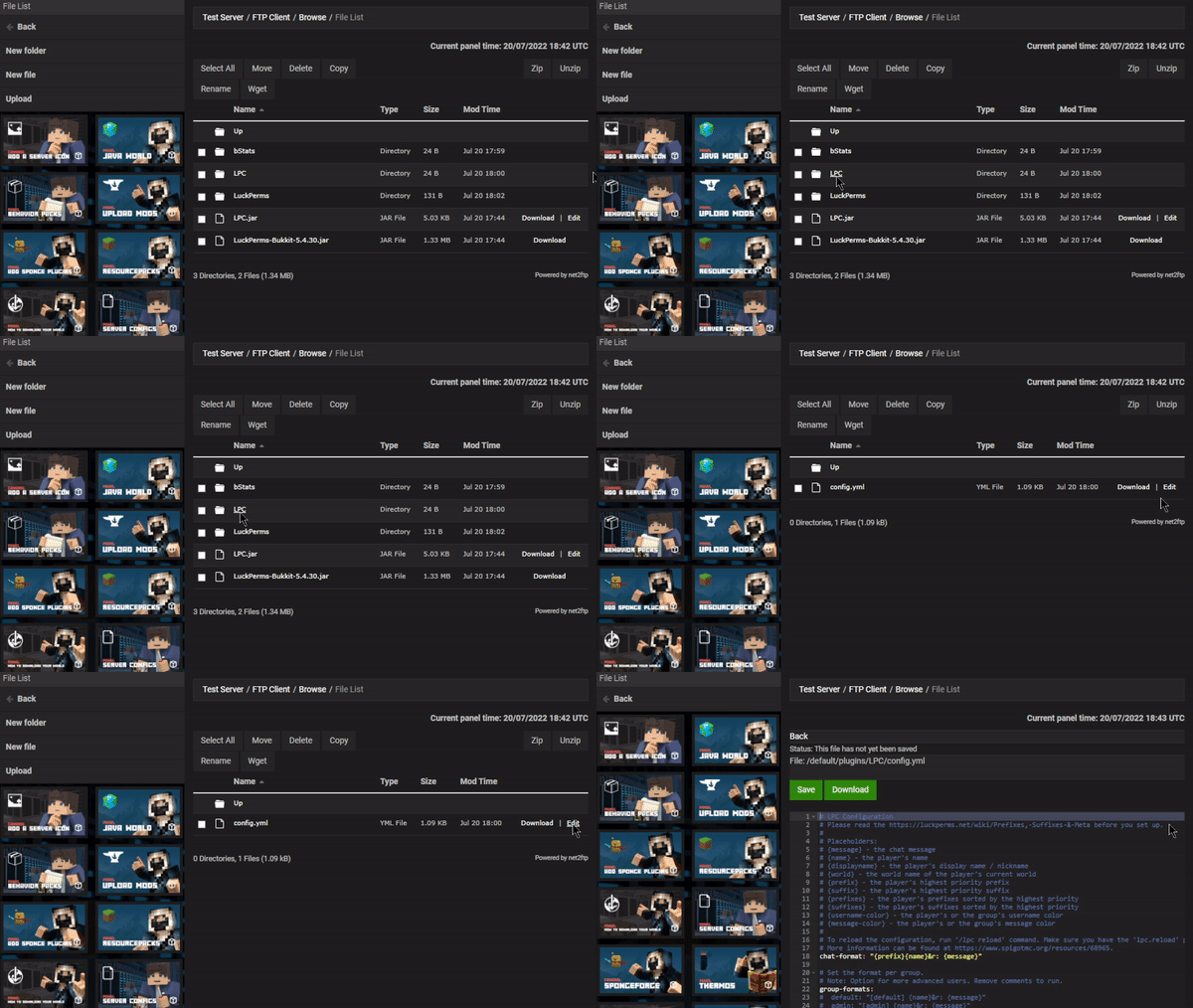
- Make any necessary changes and continue to Save, then use the
/lpc reloadcommand in-game.
Default Format

Most server owners will only need to use the default format for their chat, because it hooks into the rank prefixes without any intervention. However, you must format the LuckPerms group prefix accordingly so it can appear in-game without issues. Inside the main config.yml file, you can see the default option for chat format inside the quotation marks. You’ll need to edit within those quotes to safely change the format.
chat-format: "{prefix}{name}&r: {message}"Additionally, you may use color codes to make your chat stand out compared to the normal plain white text format. For example, you can format a rank called “Apex” in LP to have the “&7[&3&lApex&7] “ prefix value, which will properly display in-chat.

Placeholders

If you want more formatting options, then using placeholder values such as {world} will show more information in the game chat. This can be useful for networks, servers with the Multiverse plugin, or wanting to have more info in their chat. You can find an entire list of default placeholders down below to get started.
| Placeholder | Description |
|---|---|
| {message} | The chat sender’s message. |
| {name} | The player’s name that sends a message. |
| {displayname} | The nickname/displayname of the player. |
| {world} | The world’s name that the player is located at. |
| {prefix} | The user’s highest prioritized prefix from LP. |
| {suffix} | The person’s highest prioritized suffix from LP. |
| {prefixes} | Multiple prefixes in order of priority from LP. |
| {suffixes} | Multiple suffices in prioritized order from LP. |
| {username-color} | The player’s or group’s username color. |
| {message-color} | The message color from the player’s or rank’s setting in LP. |
Remember, you can install the PlaceHolderAPI plugin for even more placeholder settings to implement in your chat.
Group Format
Instead of using LPC’s default format, you can instead enable the advanced configuration. It’s called the group formats, which basically means that you can format the rank prefixes in the plugin rather than using LuckPerms. It’s another way of formatting your chat and using placeholders, but isn’t required. In order to enable it, you’ll want to remove the hashtags by the settings in the config.yml file. It’d look like the following setup below.
group-formats:
  default: "[default] {name}&r: {message}"
  admin: "[admin] {name}&r: {message}"
The result for using group formatting is the exact same thing found in the default chat.
Conclusion
Formatting your chat with LuckPerms integration saves you stress from configuring other format plugins to hook into your ranks. Essentially, if you prepare the group prefixes or anything else in LP then all you need to do is install LPC and your chat is formatted. However, tweaking the exact display of messages, usernames, and so on is what most server owners do. This will make your chat in-game stand out with unique placeholders, colors, and symbols. We wish you the best of luck and hope you enjoy the new chat format on your Minecraft server!
Useful Links
How to Install & Use LuckPerms
LPC Spigot
Minecraft Color Codes