Overview
In the world of Minecraft server hosting, ranks and cosmetics are often a desire for most players. When using a permissions plugin like LuckPerms, a player’s rank can appear in the chat, but server owners may wish to take an additional step forward. Introducing NametagEdit, a Spigot plugin that solves this issue by allowing custom prefixes and suffixes to appear above a player’s head and inside of the tab menu. This can be used to set unique prefixes for individual players or even entire server groups. Other plugins such as EssentialsX can also be used to improve the text formatting and allow each nametag to become unique. With Apex Hosting, installing NametagEdit is as simple as using our panel uploader, so we have created this tutorial to guide you in how to get started.
Summary
NametagEdit is an aesthetic plugin created by Cory on Spigot. With over 950,000 downloads, the plugin allows you to customize a prefix and/or suffix for individual players or entire permission groups. Available from version 1.7 up to the current release, NametagEdit is a must-have plugin, allowing players to flaunt their rank to others and build the desire to keep playing.
Downloading NametagEdit
Modbox Installation
IMPORTANT: Make sure to have Spigot or Paper selected in the Game File option on your server panel so plugins can work properly.
- Head towards your Apex server panel for the server.
- Navigate to
Server Configuration > Modboxon the left.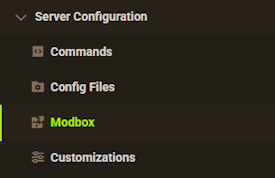
- Choose the version and search for the plugin you want, then select it.
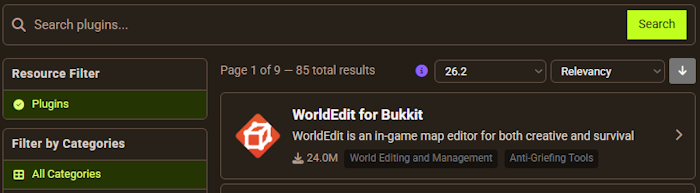
- Click
Installon the left and wait for it to be installed. - Restart the server to load the plugin. Repeat this process for any other plugins.
Manual Installation
Download NametagEdit on Bukkit or Spigot and follow these steps:
- Download the plugin file from the link above.
- Head towards your Apex server panel for the server.
- Locate the Game File option, then select Spigot or Paper if you haven't already.
- Navigate to
File Management > FTP File Accessand login. - Drag + drop the .jar file in the
pluginsdirectory. Alternative: Click theUploadbutton and select the file. - Wait for this to finish, then return to the main panel.
- Restart the server and the plugin should load properly once you join.
Using NametagEdit
Once the server is back online, NametagEdit should now be loaded and available for use on the server!
Setting Individual Prefix/Suffix
In order to set a prefix for an individual player, you will want to use the /nte player command in-game. To set a prefix or suffix, use the following command:
/nte player [Player] prefix/suffix [Text]
Replace the [Player] and [Text] with the desired fields. For example,
/nte player Daltondorf prefix ‘[Apex] ‘.

If successful, you can now hold “Tab” to view the player list and see the new prefix added to the game. This can be removed at any time with the /nte player [Name] clear command later on.
Adding a Group Prefix

In order to create a group prefix, you must first add a new group and permission inside of the plugin. This can be done with the following two commands:
/nte group add [GroupName]/nte group [GroupName] permission permission.name

Now like before, you will want to use a command to set a custom prefix or suffix to anything you desire for the group.
/nte group [GroupName] prefix/suffix [Text]

From here, you will want to use a permissions plugin such as LuckPerms to give the desired group the custom permission that you set. If successful, the prefix or suffix you chose will appear in the tab menu like before.
Additional Formatting
If the basic formatting is not enough, NametagEdit is compatible with other plugins, such as EssentialsX and PlaceholderAPI, allowing you to have placeholders and text formatting as part of the name tag.

If EssentialsX is installed, you can make use of the color and text formatting included in the plugin. This can provide colored ranks, names, and more simply by including the codes in the prefix command.
E.g. /nte player Daltondorf prefix ‘&3[Apex Hosting] &4’

Additionally, if a plugin like PlaceholderAPI is installed, the downloaded placeholders can also be used as part of the name tag. This can be helpful for displaying currency, the current world, and much more.
E.g. /nte player Daltondorf suffix ‘&5 [%essentials_world_time%]’
Common Issues
Unknown command error:
Oftentimes, an unknown command error may appear if the plugin is not installed properly or if the server is running an incompatible version. First, ensure the server is running a version like PaperMC on the Apex Panel, then restart to ensure it is loaded up. Afterwards, use /plugins in-game to check for any installed plugins. If none are listed, ensure the .jar file was uploaded into the correct folder.
The plugin appears in red when I use “/plugins” in-game:
If NametagEdit appears in red and commands give an internal error, it can mean the plugin is either not updated or not functional on the latest version. First, try to download the .jar file from Jenkins and replace the .jar on the server. If issues still occur, the server version may not be compatible and may require a plugin update from the Author.
Helpful Links
NametagEdit Spigot Page
How to Use EssentialsX
How to Install LuckPerms