


Overview
When you play through vanilla Minecraft, particles are constantly surrounding you. Whether it’s the bubbles from lava, a downpour of rain, or the smoke from a campfire, they are always present to the player. While these are cool, some players took it to the next level using the /particle plugin to make cool shapes, though they require command blocks to be properly used. This is no longer an issue with PlayerParticles, a Minecraft plugin that allows you to revamp your character with customizable particles and shapes. Add a halo, trails, and even arrow effects with just a few simple clicks. Installing plugins is streamlined with our Apex Hosting panel, so we have created this tutorial to help you get started.
PlayerParticles Download
- Visit the PlayerParticles Spigot Page.
- Press the blue
Download Nowbutton in the top-right.
- Save the .jar file to a safe location, as it will be needed shortly.
Note: While the latest version is compatible with most versions, you can enter the Version History tab to download a specific version of the plugin.
Server Installation
- Navigate to your Apex server panel, then stop the server.
- Scroll down to the
Game Filesection and make note of the version.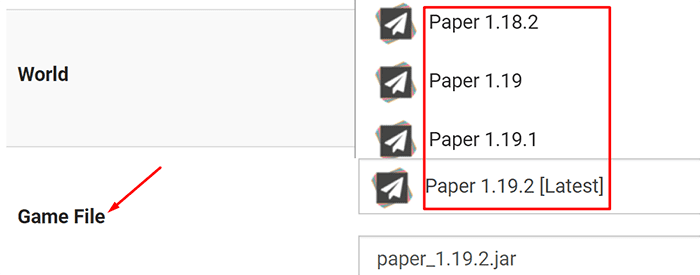
- Ensure the version is plugin-compatible, such as PaperMC or Spigot.
- Afterwards, enter the
FTP File Accessin the left-hand menu. - Enter the
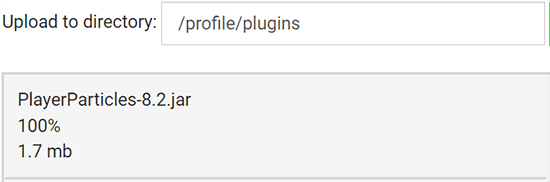
pluginsfolder, then pressUploadin the top-left. - Drag + drop the PlayerParticles.jar into the right-hand side.
- Once at 100%, return to the main panel page.
- Restart the server to load up PlayerParticles in-game.
Using PlayerParticles
Creating a Particle

To get started, use the /pp command to open the PlayerParticles GUI. In the menu, press the Blaze Powder item to manage your particles. Then in the new page, press the Book and Quill to create a new particle.
This will open a secondary menu allowing you to select which particle you wish to add. You can use the buttons at the bottom to switch pages. You can select from a large number of effects ranging from fire to fireworks.


After selecting the particle, you can then choose the style/occurrence for the particle. Some styles are always active, such as the wings or spirals. Others will only activate under certain conditions, such as dying, breaking blocks, and more. Once you have made your selection, the particle will instantly be available to test out.
Stacking Multiple Effects
In addition to setting specific effects, you can also combine a variety of effects at once. To do this, simply return to the particle manager menu, then create another effect like before. This can combine a variety of styles at once to have cubes, spheres, and more. You can use as many or as little particles as you want.

Editing Particles

If a particle simply isn’t suiting your needs, you can also adjust them at any time. To do this, visit the particle manager menu, then select the one you wish to edit. Once selected a new menu should pop up providing 3 options. These will allow you to change the particle, style, and data respectively. Once you’ve made your edits, press the arrow to go back and review your changes.
Saving a Group


In some cases, you may want to save your configuration as a group for later. This is helpful as both a backup and if you want to switch between different configurations at any time. From the /pp menu, click the chest icon, then press the book and quill. This will prompt you to enter a group name in the chat, which will save your group for later.
Commands
| Command | Description |
|---|---|
| /pp add [Effect] [Style] [Data] | Adds a new particle. |
| /pp data [Effect] | Check what type of data an effect uses. |
| /pp edit [ID] [Effect/Style/Data] [Args] | Edit a particle. |
| /pp effects | Display a list of effects you can use. |
| /pp fixed [sub-command] | Manage your fixed effects. |
| /pp group [sub-command] | Manage your groups. |
| /pp gui | Display the GUI for particle editing. |
| /pp help | Displays the help menu for all commands. |
| /pp list | Lists the IDs for your active particles. |
| /pp reload | Reloads the config file and lang file. |
| /pp remove [ID/Effects/Style] | Removes the specified particles. |
| /pp reset [Other] | Removes all of your active particles. |
| /pp styles | Displays a list of styles you can use. |
| /pp toggle [On/Off] | Toggles the particle visibility. |
| /pp use [Type] [Value] | Modify the primary particle. |
| /pp version | Display the plugin version and author. |
| /pp worlds | Find out which worlds particles are disabled in. |
| /ppo [Player] [Command] | Run a /pp command as a different player. |
Permissions
| Permission | Description |
|---|---|
| playerparticles.effect.[name] | Grants permission to use an effect. |
| playerparticles.effect.* | Grants permission for all effects. |
| playerparticles.style.[name] | Grants permission to use a style. |
| playerparticles.style.* | Grants permission to use all styles. |
| playerparticles.fixed | Provides permission to use fixed effects. |
| playerparticles.fixed.clear | Allows the use of /pp fixed clear |
| playerparticles.fixed.teleport | Allows the use of /pp fixed teleport. |
| playerparticles.fixed.max.[number] | Sets the max amount of fixed effects. |
| playerparticles.fixed.unlimited | Allows unlimited fixed effects. |
| playerparticles.particles.max.[number] | Grants permission to have a max amount of particles. |
| playerparticles.particles.unlimited | Allows an unlimited amount of particles. |
| playerparticles.groups.max.[number] | Grants permission to have a set number of groups saved. |
| playerparticles.groups.unlimited | Grants permission to have unlimited groups. |
| playerparticles.gui | Grants permission to use the /pp GUI. |
| playerparticles.reload | Grants permission to /pp reload. |
| playerparticles.reset.others | Grants permission to /pp reset [Player] |
| playerparticles.override | Grants permission to use /ppo. |
| playerparticles.worldguard.bypass | Allows bypassing WorldGuard restrictions, if enabled. |
Common Issues
The plugin is not working:
If none of the plugin commands seem to be working, try using the /plugins command to see if PlayerParticles is listed. If the plugin does not appear, it often means it is not loaded properly. Ensure the .jar file is uploaded into the plugins folder, otherwise it cannot be found by the server. Once this is done, restart the server and try it once again.
I don’t have permission to use commands:
If you are unable to use commands from the plugin, you are likely lacking the necessary permissions. If you wish to have access to all commands, simply provide yourself with /op. To customize the exact permissions for commands, consider using a plugin like LuckPerms. Once either method is completed, you should be able to use the desired commands at any time.





















