25% off on first order withAPEX25
Minecraft
Posted on Apr 8, 2019

How To Install And Use ShopGUIPlus Plugin

ShopGui Overview ShopGUI+ is a premium Bukkit plugin that allows you to add a custom shop to your Minecraft server that can be accessed via the /shop command. This plugin is the basis for your server’s economy. It allows you to set up GUI b...

ShopGui Overview

ShopGUI+ is a premium Bukkit plugin that allows you to add a custom shop to your Minecraft server that can be accessed via the /shop command. This plugin is the basis for your server’s economy. It allows you to set up GUI based shops that players can buy and sell various in game items from. You can set item price, amount, etc. within the plugin. ShopGUI is definitely a plugin that you’ll want to mainly edit via the config files on your control panel. ShopGUIPlus is an advanced shop plugin that allows you to create server shops and allow your players to sell items from anywhere on your server without having to physically be at the shop. As the name suggests the shops are entirely GUI based which brings a really clean look to your server and is helpful for all players to make selling and buy items as painless as possible.

As far as plugins go, ShopGUI+ is a must have for any server as it allows you to create an entire economy. You can sell everything from grass blocks to mob spawners to beacons allowing your players to finally have a use for the money they generate in game. Speaking of generating money in-game, ShopGUI+ can also buy back items from players using the /sell hand command giving players a use for all of the extra items they don’t need. ShopGUI+ has tons of different configuration options for your Minecraft server, and you can check out exactly how to setup ShopGUI+ using the video above!

Plugins require you to run a Paper ( We recommend Paper ) or Spigot jar in order to load the Multiverse Core plugin on your server. You can find a guide on changing your server jar here.

How to install ShopGUI+

Panel Installation

    change-jar-dropdown

    Make sure your server is running Paper or Spigot. You can check this in the jar dropdown on the game panel dashboard.

  • To the left of the game panel, press the Plugins List tab.
  • Type in “ShopGUI+” in the name search and scroll until you find it. Then click on it to open the download page.
  • At the bottom of the page, check the version you have selected. It’s good to cross-reference this to the official Bukkit or Spigot page.
  • Find the correct version from the version dropdown, select it and press install.
  • Go back to the Game Panel and restart your server. You can check if the plugin was installed successfully by typing “pl” into console.
  •  
    Install through FTP

      shopgui page source

      Once the file is downloaded, put it in an easy to find spot like your desktop or a folder for later.

  • Go to the official ShopGUI+ page on Spigot and since there is no files tab, this means that as long as your server version is listed you are good to click on download.
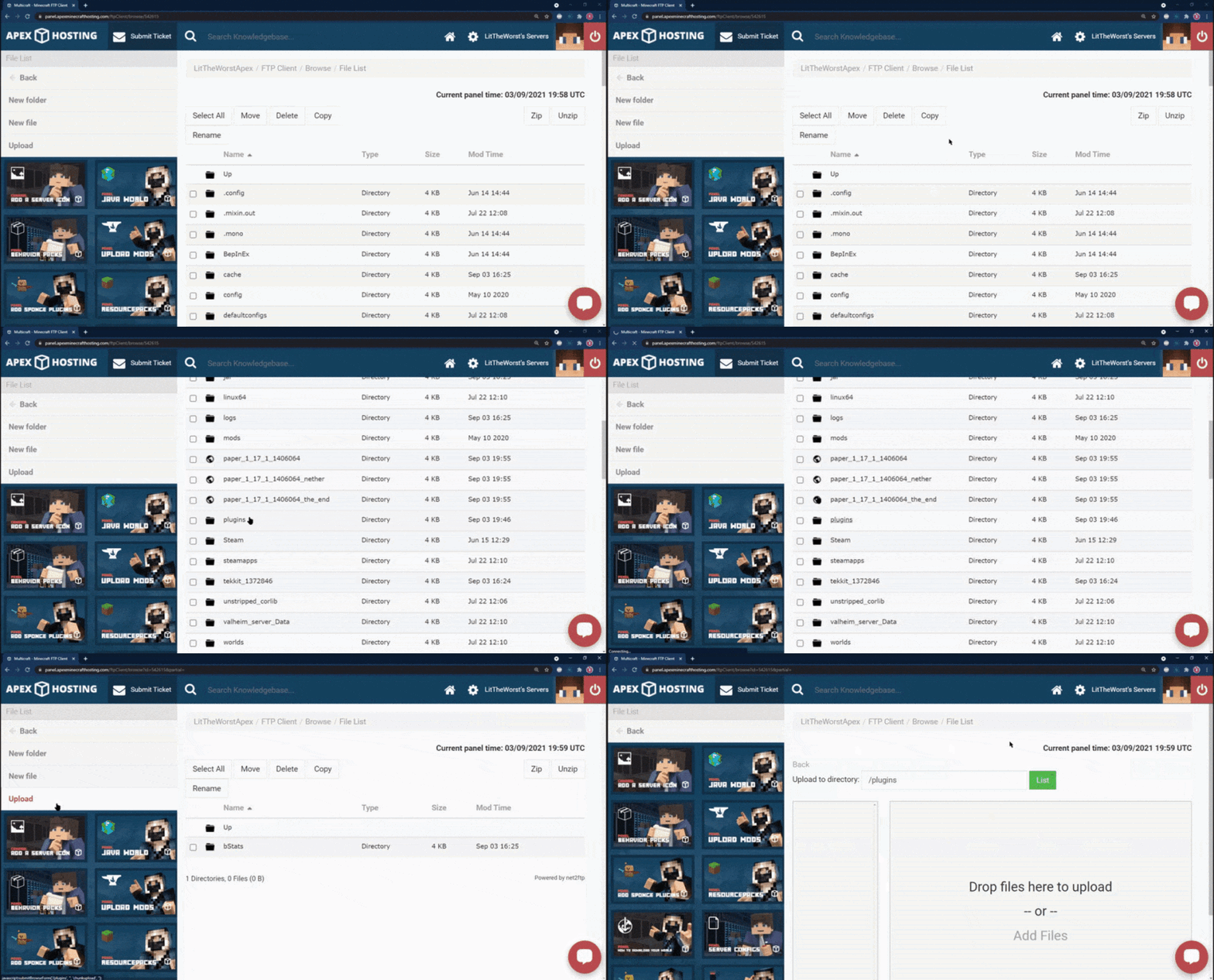
  • Head to the Game Panel and click FTP File Access to the left of the panel.
  • Once you login to the FTP File Access you will see a list of your files. Open the plugins folder and click “Upload” to the top left of the page.
  • Drag your plugin over to the right side of the page and wait for it to reach 100%.
  • Go back to the Game Panel and restart your server. The plugin should now be installed. You can check this by typing “pl” into console.
  • change-jar-dropdown

    Commands


    The complete list of commands can be found in the developers documentation below.

    ShopGUI+ Download Link: https://www.spigotmc.org/resources/shopgui-1-7-1-13.6515/
    Vault Download Link: https://dev.bukkit.org/projects/vault
    Developer's Documentation: https://wiki.brcdev.net/ShopGUIPlus/Installation_%26_configuration










