


Overview
Protecting your Minecraft server’s world from griefers, cheaters, and other problematic players is common among owners. The most popular Bukkit plugin for this is WorldGuard, allowing you to create protected regions in-game that have configurable settings. These options are called flags, used to toggle or add specific functions in a defined area of your world. However, in some cases there aren’t enough settings to tweak, leading owners to find more. Luckily, the WorldGuard Extra Flags plugin offers more for you to use on Paper or Spigot servers. This integrates into your regions without any problems and allows for many features, such as disabling elytra flight. Other aspects are preventing player effects, enabling god mode, or keeping inventories. These abilities can help make your region more protected and secured, making it an essential plugin for spawns, shops, hubs, and more builds. Keeping this in mind, we’ll learn how to install and use WorldGuard Extra Flags on your Minecraft server in this Apex Hosting tutorial.
Summary
The WorldGuard Extra Flags plugin released in mid-2015 by isokissa3 on Spigot, collecting over 150,000 downloads. This is an extension for WorldGuard, adding 26 new flags to your regions. It supports Minecraft 1.7 to 1.19 and has specific versions to support them, respectively. The plugin works out-of-the-box due to no prior configuration and is easily implemented into the regions, just like normal flags.
Installation
Before installing the plugin, make sure to have installed WorldEdit and WorldGuard since these are required dependencies for everything to work properly. Once these are in the server, proceed to follow the instructions below to get started.
- Navigate to WorldGuard Extra Flags on Spigot, then press Download Now.
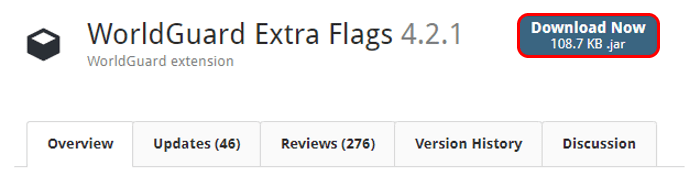
- Save this file somewhere easily accessible on your computer.
- Afterward, head towards your Apex server panel and click FTP File Access near the top left corner.
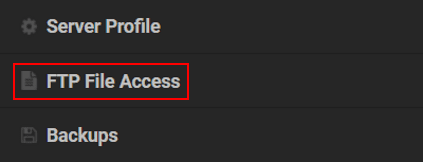
Note: Make sure to use the correct server profile for the installation.
- Login with your password and continue into the plugins directory.
- While in there, in the top left press Upload and drag the file into the respective area.

- Wait for this to reach 100%, then return to the main panel to Restart the server.
- Once it loads, join and execute the
/pluginscommand to verify if the plugin was installed.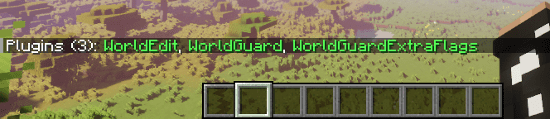
This should display
WorldGuardExtraFlagsin green, meaning it’s enabled on your server.
Version Compatibility
The list below shows what type of plugin versions you need depending on the server type. If you need a specific one, then it should be in the Version History on the respective Spigot page.
| Minecraft Version | WorldGuard Version | Extra Flags Version |
|---|---|---|
| 1.19 | 7.0.8 | 4.2.0+ |
| 1.17 to 1.18 | 7.0.7 | 4.2.0+ |
| 1.16 | 7.0.5 | 4.1.5 |
| 1.14 to 1.15 | 7.0.3 | 4.1.5 |
| 1.13 | 7.0.0 | 4.1.5 |
| 1.12 | 6.2.2 | 4.1.5 |
| 1.7 to 1.11 | 6.2.0 | 4.1.5 |
Using Extra Flags
- Join your Minecraft server and either create a new region or locate an existing one.
Note: Review our guide here to learn how to make a region in your world. - Once a region has been identified, use the
/rg info [region name]command. - Clicks Flags on the menu in-chat that opened, which reveals all of them to change.

- Near the bottom, press the arrows to continue on the next pages.
- Do this until you see Third-Party Flags or when the text becomes pink.

- From here, proceed to click the right-hand side options for each one you want enabled.
Flags List
Now that you understand how to use WorldGuard Extra Flags on your Minecraft server, review the entire list of flags below.
| Region Flag | Description |
|---|---|
| teleport-on-entry | Teleport the player to a specific location upon entry in the region. |
| teleport-on-exit | Players will get teleported to a given position after leaving the region. |
| command-on-entry | Execute a command when a player enters the region. |
| command-on-exit | Runs a command when players leave the region. |
| console-command-on-entry | Execute a console command when players enter the region. |
| console-command-on-exit | Runs a command via the console upon a player leaving the region. |
| walk-speed | Sets the walking speed within a region. |
| fly-speed | Determines flight speed in a region. |
| keep-inventory | Toggle if players keep their inventory items upon death in a region. |
| keep-exp | Toggle if players retain their experience orbs after dying in a region. |
| chat-prefix | Sets the chat prefix shown within the region. |
| chat-suffix | Sets the chat suffix for a region. |
| godmode | Determine if players become invincible inside regions. |
| blocked-effects | Blocks any status effects within the region. |
| respawn-location | Defines the spawn location for players in a region. |
| worldedit | Toggle WorldEdit commands in the region. |
| give-effects | Provide status effects for all players in your region. |
| fly | Determines if flight is enabled within your region. |
| play-sounds | Allows for sound to be played in the region, but will stop playing once players leave the area. |
| frostwalker | Control if the frostwalker enchantment is enabled in your region. |
| nether-portals | Toggles if nether portals can be created by players in a region. |
| glide | Toggle elytra flight in your region. |
| chunk-unload | Determines if unloading chunks is allowed in the region. |
| item-durability | Toggle item durability in your region. |
| join-location | Teleports players to a specific position upon logging in the region. |
Common Issues
Plugin Isn’t Working
After installing the plugin, run the /plugins command to confirm if it’s enabled. If you see it appear as red or nothing at all, then it’s disabled. This may indicate you’re using the wrong version for the server, so make sure you review the Version Compatibility section to get the correct one. Otherwise, double-check to see if it’s installed on the correct server profile. In some cases, owners upload the plugin into the wrong one and results in the plugin not working. Once the right version and profile are confirmed, then proceed to redo the installation.
Unable to Use Commands
In rare cases, owners might be unable to use commands from the plugin. This can indicate you lack permissions, meaning you’ll want to become the server operator (OP). Once your account has these privileges, you should be able to perform any command. However, keep in mind that you’ll bypass all flags with OP. Besides this, it could mean you aren’t selecting a valid region for the flags. Ensure your region works and is properly created for the setting changes.
Useful Links
WorldGuards Extra Flags on Spigot
How to Add Plugins to Minecraft Servers
How to Install and Use WorldEdit
Installing and Using WorldGuard





















