

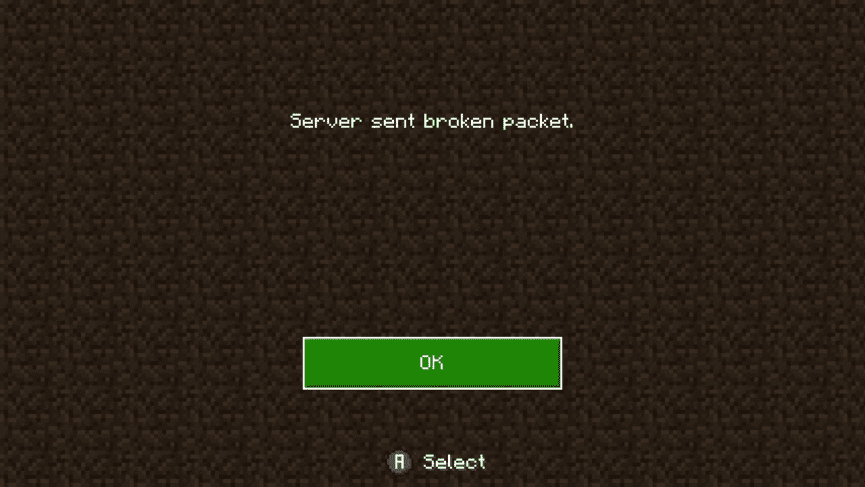
While trying to join your Minecraft Bedrock Edition Server, your connection might be refused. There are tons of reasons why, but one of them is called ‘server sent broken packet’. This might impact only you or everyone joining the server. The exact causes can be simple or complicated, so we’ve created this Apex Hosting guide to help you. Read through this tutorial to fix the ‘server sent broken packet’ error for your Bedrock server.
What Causes ‘Server Sent Broken Packet’?
There are a few common reasons why this error occurs in Minecraft Bedrock:
- Version Mismatch
- Geyser or Proxy Translation Issues
- Corrupted World or Resource Pack
- Network Problems
- Outdated Server Software
What this means is that the problem is either client-sided or server-sided. Whether it’s a simple version mismatch or a corrupted world, there are plenty of ways to test solutions and fix the error.
Possible Solutions
Restart Minecraft & Server
Close the game completely and reopen it – then restart your server. This clears cached networking and session data that could be causing the issue.
Check for Version Updates
Make sure all of the following are using the latest version:
- Minecraft Bedrock Client
- Minecraft Bedrock Server
- Geyser / Floodgate (If used)
If they don’t match, packets may be formatted differently, which leads directly to this error.
Direct Connect to Server
Confirm that you’re joining using the correct IP Address and Port. E.g. 172.240.9.67:19132.
- Open Minecraft Bedrock.
- Go to Play → Servers.
- Select Add Server.
- Enter your correct IP:Port and try joining.
A wrong address or port can cause the server handshake to fail, resulting in packet errors.
Temporarily Disable Geyser
If your server supports Java + Bedrock crossplay:
- Disable or uninstall Geyser and Floodgate plugins.
- Restart your server from the main panel.
- Try to join the server, ideally a direct connection.
If successful, the issue is related to protocol translation – updating these plugins fixes it.
Test with a New World
If the issue began recently, your world may have corruption.
- Stop the server.
- Create a new temporary test world.
- Start the server and try joining again.
If the error goes away, consider restoring your original world from a recent backup.
Check Network & Port Forwarding
Minecraft Bedrock uses UDP, so incorrect network configuration can break packets.
Try the following:
- Restart your router or modem.
- Try connecting from another network, such as mobile data or a hotspot.
If a different network works, the issue is local to your router or Internet Service Provider (ISP).
Helpful Resources
How to Create a New World
How to Restore a Backup
Minecraft Geyser Guide
Apex Hosting Support
Server & Client Security
Making sure you have a stable connection to your Minecraft Bedrock Server is important. Whether the server is causing issues or your network, there are many reasons why broken packets are being sent. We hope this guide helped you find a solution! If not, then please contact us for support so we can double-check that the server is secure and working properly.





















