

Getting home from school or work to play on your Minecraft server is a great way to relax, especially with friends. Unfortunately, connection problems can arise and prevent you from playing. A common issue that many users encounter is the ‘Connection timed out: getsockopt’ error. There are many reasons why this happens, making it more difficult to fix. With this in mind, we’ve created this Apex Hosting guide to help you fix the ‘getsockopt’ error in Minecraft.
What is Causing This Error?
- Your network or firewall is blocking the connection to the Minecraft server. This can happen when you’re playing at school or using a network managed by an administrator. The same applies to your own computer at home, as the firewall could be preventing you from joining without your knowledge.
- You’re using the wrong IP Address:Port / Subdomain to make the connection. This occurs when you move to another server location, mistakenly use an incorrect IP to join, or if the subdomain is changed.
- The server is temporarily offline for maintenance, there’s on-going automatic restarts, authentication servers are down, or other technical issues preventing a successful connection. Each case is different and unique, so the causes for ‘getsockopt’ varies by user.
Troubleshooting & Fixes
Due to the uncertainty of the exact reason behind the error, there are a few tricks to try out. These include troubleshooting the firewall, network, checking if authentication servers are down, and more. Consider testing each method below to find what works for you! 👍
Restart Minecraft Launcher
By far one of the most effective ways to fix the ‘getsockopt’ error is to reboot your launcher. Simply close it down and re-open it, then try joining the server. Otherwise, force close it by terminating the launcher’s process on your computer OR restarting the entire computer.
Direct Connecting
- Visit this guide to find and confirm the server IP Address:Port / Subdomain.

- Launch Minecraft and navigate to the Multiplayer menu.
- Click “
Direct Connection” at the bottom, then enter the server address.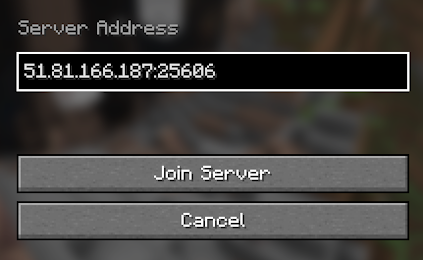
- Proceed to join and see if that helped resolve the ‘getsockopt’ error.
Network Issues
Try the following suggestions to see if that resolves any network connection issues:
- Use a Virtual Private Network (VPN) connection to join the Minecraft server.
- Change home networks, such as switching to mobile data or another WiFi connection.
- Clear the DNS Cache on your computer via Command Prompt or Terminal.
- Reset the internet by restarting the router / modem at your location.
- If not at home, contact the network administrator to see if they can assist.
Firewall Issues
Try the steps for your computer below to allow firewall connections to Minecraft:
- Close Minecraft, then open Windows Security > Firewall & Network Protection.
- Click “
Allow an App Through Firewall” when you locate it. - Find javaw.exe and ensure both “
Private” and “Public” are checked. - Save changes and try joining the server to see if that resolved the problem.
- Close Minecraft, then open System Settings > Network > Firewall.
- Locate and select “
Firewall Options” from the menu. - Add Minecraft or Java, then set to “
Allow Incoming Connections” when prompted. - Save changes and try joining the server to see if that helped.
Mojang Status
In some cases, the ‘getsockopt’ connection error for Minecraft is caused by Mojang Authentication servers being down for maintenance. If this is happening, then verify it by checking the status. Once confirmed, you will have to wait for the servers to come online.
👉 Minecraft Downdetector
👉 MojangStatus on X
Apex Hosting Support
If the above methods aren’t doing the trick, then reach out to our Support Team for extra assistance. We will work with you to resolve the issue, however – we may decide that a new IP Address:Port or Subdomain is required. Whether you create a ticket or open a chat, our team will do their best to fix your connection error.
Connection Errors in Minecraft
Out of all the issues you could encounter in Minecraft, ‘Connection timed out: getsockopt’ is one of the more confusing ones. This doesn’t give you a lot of information to go off on, meaning the solution can vary. Hopefully one of the above methods helped you join the server. Remember, if you’re still stuck – then contacting us is your best option. Keep in mind that there are other client-related causes for this connection issue, which might complicate troubleshooting efforts.





















