


Overview
Hosting Rust servers allows for many different abilities, with plugin support being a highly sought after one. Using them can help build a professional and engaging environment for your players. Without plugins, inconveniences or issues may arise as you start customizing the server. For instance, sometimes there are useful commands that players need to know, but have no access to that information. Solving this introduces the Advert Messages plugin, allowing server owners to create announcements in-chat. This can help teach new users or promote events, websites, or anything else you may want. It’s considered an essential tool for many people, especially when it’s used for professional appearances. With our easy-to-use panel, installing and managing plugins is simplified for you. With this said, let’s learn how to install and use the Advert Messages plugin on your Rust server in this Apex Hosting tutorial.
Server Installation
- Navigate to Advert Messages on uMod, then press
Downloadon the right.
- Save this file somewhere easily accessible on your computer.
- Head towards your Apex server panel, then click
FTP File Accessnear the top left.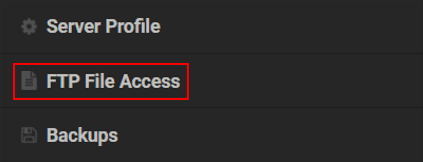
Important: Ensure you’re using the correct Server Profile for this installation.
- From here, login with your password and enter in the oxide directory.

- Continue to the plugins folder and press
Uploadat the top left. - Drag and drop the file into the respective area and wait for it to reach
100%.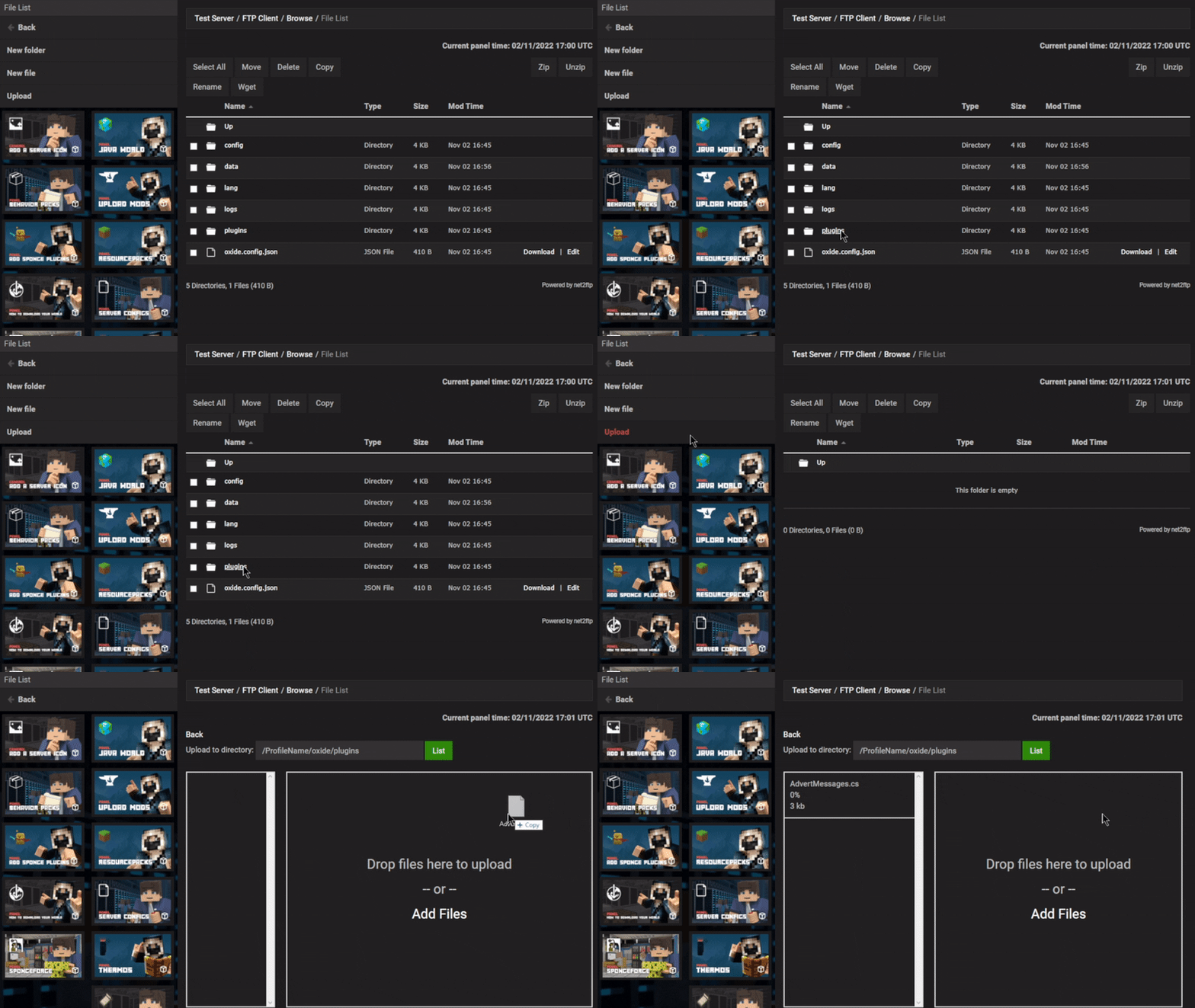
- Afterward, return to the main panel to
Restartthe server so the Advert Messages can load.
Make sure the uMod Support option is enabled from the
Customizationsarea in your server panel, as this allows plugins to work. This is activated by default, but double-checking might be worth it so everything functions properly.
Getting Started

Upon installing the Advert Messages plugin, you’ll notice three announcements in-chat. These are set by the plugin’s configuration by default, which is completely customizable. Colored text is a popular feature, allowing you to emphasize important information. This comes in handy if you’re wanting to advertise links, commands, or other useful messages. There aren’t any commands or permissions, meaning everything is controlled through the settings. Following this, we’ll go through how to use the plugin and some message ideas to get you started.
Configuration
As previously mentioned above, all the plugin features are configurable in the settings file. A popular change most server owners implement is altering the duration between messages. Players may get annoyed if they quickly spam the chat, making this an important feature to customize. There are other ones too, such as randomly choosing which message to send. Review the instructions below to access and edit the plugin’s configuration file.
- Log into your
FTP File Accessarea from the server panel. - Proceed enter in the oxide directory, then continue to the config folder.
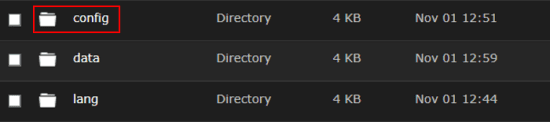
- Locate the AdvertMessages.json file and press
Editto the far right, revealing its contents.
- Make any necessary changes, then press
Saveat the top.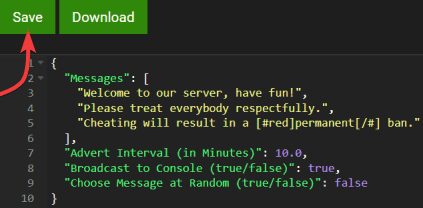
- Return to the main panel and
Restartthe server to apply the edits. - Join and confirm if it’s working properly.
Message Ideas
Now it’s time to create some announcements in your chat, but there are endless possibilities. Whether you’re wanting to advertise a Discord server or reveal helpful information, it comes down to your desires. Check out some popular examples down below to get a better idea of what to implement.

Advertising a social media account that’s associated with your server is something most owners do, as this can strengthen the community. This can be for Discord, Twitter, YouTube, or other platforms.
Although, don’t forget about entering the URL or username of the account in the message since that’d defeat the purpose.
Similarly to social media accounts, you can instead attach your website to an announcement message. This is an extremely common feature to use on Rust servers, as it appears professional and offers more options to your community.

Otherwise, it can be other sites and services related to Rust or your server.

Other popular uses for the Advert Message plugin include having helpful tips and tricks in the chat. This can truly be useful for your players, as they can find out information about commands, other plugin abilities, crafting recipes, or anything else important.
Combining colored text for these types of messages will make it stand out from the rest.
If you’re wanting to use colored text on your own messages, then add “[#color]” at the start and end with “[/#]”. For example, using
Welcome to my [#red]server[/#]will make “server” appear as red in-chat. This can also be used for the entire message by starting with the color first, then ending with the closing tag.
Common Issues
Messages Aren’t Working
In cases where the plugin’s not working properly and sending messages to your server’s chat, it’s likely that you didn’t Restart afterward. Make sure to do this so the new changes to the file can save and be applied. Alternatively, you may want to Stop the server before making edits to the configuration, then reboot to see if it works. These solutions will give you the best odds at fixing the situation.
Config File Isn’t There
If you’re unable to see the configuration file, then ensure you installed the plugin in the correct server profile. Using the wrong one may result in problems, such as this one. However, it could be equally plausible that you either didn’t Restart the server or Save the changes in the file. Doing this and confirming the installation will likely get the announcements to send in-chat.
Useful Links
Advert Messages on uMod
Rust Server Hosting
How to Add Plugins on Rust Servers
How to Join a Rust Server





















