


Overview
Building bases or creating weapons takes time in Rust, which varies depending on the item you craft. If it’s higher grade materials, it’ll be longer until it’s made and can become problematic for your server’s players. Solving this requires the Instant Craft plugin, allowing users to easily create any items without wasting time. For example, crafting weapons is now completely automatic and happens without hesitation once started. This plugin gives you the ability to completely customize what materials can be instantly created, among other aspects. It’s all configured and installed through our easy-to-use panel, aiming to simplify the process for you. With this in mind, let’s learn how to install and use the Instant Craft plugin on your Rust server in this Apex Hosting tutorial.
Server Installation
- Navigate to Instant Craft on uMod, then press the
Downloadbutton.
- Save this file somewhere easily accessible on your computer.
- Afterward, head towards your Apex server panel and click
FTP File Accessnear the top left.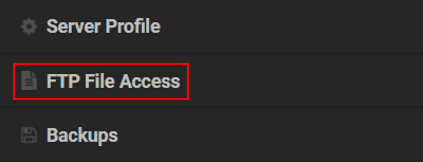
Important: Make sure to be using the correct Server Profile for this installation.
- Login with your password, then enter in the
oxidedirectory.
- From here, select the
pluginsfolder and pressUploadat the top left corner. - Drag and drop the file into the respective area, then wait for it to reach
100%.
- Once it’s finished, return to the main panel and
Restartthe server so it loads.
Ensure uMod Support is enabled from the
Customizationssection in the main panel, as this is required for any plugin to work. If this isn’t toggled, then check mark the option andRestartthe server.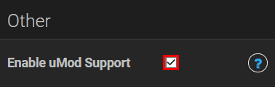
Getting Started
Upon joining the server, you may notice that items aren’t instantly craftable. This is intentional, as the plugin requires permission for players to use it. Use oxide commands to add the instantcraft.use ability for a user or group to get started. Once permission is granted, you’ll be able to instantly craft any item you want. However, the plugin’s configuration allows for blacklisting items from being automatically created. Additionally, you can set specific materials to have their normal crafting time. Besides this, there isn’t much else to the Instant Craft plugin.
Crafting Items

When a player has permissions, crafting any item or material becomes instant. This is the main aspect to the plugin, which helps with immediate combat situations or faster building. Just make sure you have enough resources or carefully decide how many you wish to make, as you’re unable to cancel these actions. Remember, this will not work if the material is blacklisted or otherwise considered “normal” for its crafting time.
Configuration
As for Instant Craft’s settings, they’re accessible from the server files. There is only one file to edit, containing a handful of options to change. These will determine what items are blacklisted, considered normal, among other aspects such as splitting created material stacks. Follow the instructions below to access and edit the plugin’s configuration file.
- Head towards your
FTP File Accessarea from the server panel, then login. - Once there, enter in the
oxidedirectory and select theconfigfolder.
- Next, locate the InstantCraft.json file and press
Editto the far right of it.
- Proceed to make any necessary changes and click
Saveat the top when you’re done.
Restartthe server from the main panel and join to confirm the edits were applied.
Common Issues
Plugin Isn’t Working
In cases where the Instant Craft plugin doesn’t function properly, it’s likely that the server didn’t load it. Make sure to Restart after uploading the file in the …/oxide/plugins directory. If it persists, then double-check you’re using the correct server profile for this installation. Additionally, you may not have the right permissions activated. Ensure to be using instantcraft.use for each player or group you want using this plugin. All these solutions combined will get everything working on the server.
Settings Aren’t Saving
Another common problem is the plugin’s config not working properly, which may indicate that you aren’t saving or applying the changes. Make sure to click Save at the top of the file editor in the panel, then Restart the server from the main area. Otherwise, it could be related to how you’ve edited the settings. It’s crucial that every blacklisted or normal item is defined with quotation marks. In other words, mimic the same format you see in the file and continue to apply the changes.
Useful Links
Instant Craft on uMod
How to Add Plugins on a Rust Server
Becoming an Admin in a Rust Server
Connecting to Rust Servers via FTP





















