


With the release of SCUM 1.0, flocks of new server owners are wanting to learn more. This includes the basics, how to join and edit settings! These are two essential steps when hosting your own SCUM server – as you want to customize the gameplay and easily connect without issues. In this Apex Hosting guide, we will show you how to join and configure your server.
SCUM Server Configuration
We strongly recommend creating a Server Name & Password (optional) before trying to join the server. The following steps show you how to do that, alongside editing other options for SCUM.
- Head towards your Apex server panel and make sure the server isn’t online.
- Afterwards, click “
FTP File Access” on the left and login with your password.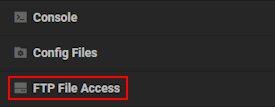
- Navigate to the this directory:
...SCUM/Saved/Config/WindowsServer - Proceed to click “
Edit” for the “ServerSettings.ini” file.
- Make any necessary changes, then press the “
Save” button at the top.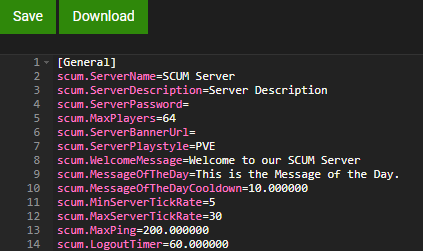
- Return to the main panel and restart the server to apply the changes.
Joining a SCUM Server
- Open SCUM and click “
Multiplay” from the main menu.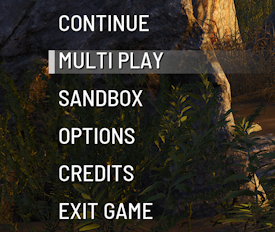
- Proceed to type the Server Name in the “
Search Filter” and find it in the list.
- Select your server and click “
Connect” once you found it. - If you have a Password, enter that and begin creating your character to join the server.
Alternatively, you can direct connect via the Server IP Address:
- Open SCUM and click “
Multiplay” from the main menu. - Add the IP Address:Port to the “
Connect to IP” text box and click “Connect”.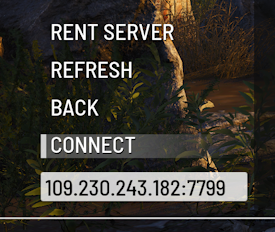
- Enter the password if you have it, then create your character to begin playing.
SCUM – FAQ
After entering your server’s name in the search filter and you’re unable to find it, try refreshing the game. Close it down, and re-open it again to see if that helps. Otherwise, double-check that the server is online and the name of it is valid. If nothing seems to be working, then you might want to see if the direct connection method via the IP Address:Port works.
After making changes to the “ServerSettings.ini” file, double-check that you saved the changes. Once you confirm that, give the server a restart to apply the edits. If this doesn’t work, then you might have broken the configuration file. This happens when you either remove a required character or enter an invalid value for an option. Deleting the entire file and restarting the server will regenerate it, returning the settings to default.
Yes, you can do this by becoming an admin. Afterwards, you can easily access the customization menu after joining the server. This includes general settings, world options, extra features, and more. Visit our guide here to become an admin and learn more about the menu.
SCUM Server Hosting
Hosting your own SCUM server to play with friends or building a community is great! However, some players might not understand how to join or even customize their gameplay. With this in mind, we’ve created this guide to help you! Whether you’re wanting to edit the welcome message or simply learn how to quickly join, we have you covered. Begin changing settings and inviting others to connect so you all can embark on a new adventure in SCUM 👏





















