


Using Custom Settings on a Sons Of The Forest Server – Overview
Personalizing your Sons Of The Forest dedicated server can result in a unique gameplay experience for all players. Whether you want realistic peaceful environments or horror survival challenges, there are countless possibilities to consider. However, setting up custom settings for your game server isn’t common knowledge among the SOTF community. Due to this, newcomers to the scene may be confused while working on this goal. This is amplified if they’re unfamiliar with the server panel, sometimes creating frustration during the process. With this in mind, we’ve created this Apex Hosting guide to show you how to set up custom settings on a Sons Of The Forest server to get you started on a unique horror adventure.
Custom Settings Benefits
There are many reasons why owners want to customize their SOTF experience, with taking on more or fewer challenges being a primary one. For instance, increasing enemy health, damage, and aggression results in a fierce gameplay session. Another example may include making everything more realistic like seasons or the day’s length, along with other features such as taking extra damage from rotten foods. Regardless of your desires, using custom settings in Sons Of The Forest is a wonderful way to personalize the gameplay experience to have fun with friends.
Getting Started

Any customization of the gameplay is controlled through configuration files, with only one being important to this process. Using our built-in editor is how you and others will quickly make changes, meaning there’s no need to download or upload files. We’ll show you how to accomplish this goal, along with breaking down all the settings for your convenience. Afterward, you’ll be shown how to activate them since it involves changing difficulties and save slots. The entire process will be straightforward and simple to follow, so review the subsections below to get started. Once you’ve done everything correctly, players joining the server can enjoy a customized gameplay experience together.
Editing Custom Settings
All the game settings are stored in the File Transfer Protocol (FTP) panel, under one main configuration. This is the area where you’ll be using the built-in editor to easily make any changes. Keep in mind that making errors while tweaking values can result in a broken file, leading to issues. Make sure to avoid removing quotation marks, colons, commas, and spaces, along with maintaining exact spelling and capitalization. With this said, follow the steps below to customize the settings for your Sons Of The Forest dedicated server.
- Head towards your Apex server panel and click
FTP File Accessnear the top left.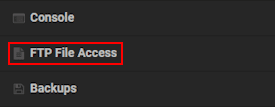
- Use your
Passwordaccordingly, then press theLoginbutton to gain access.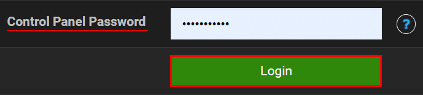
- Afterward, navigate to the
apex_sotf_serverdirectory from the list.
- While inside of this, click
Editto the right ofdedicatedserver.cfgto reveal its contents.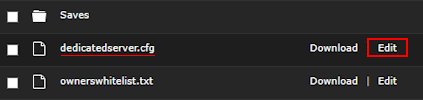
- Under
"CustomGameModeSettings": {in the editor, make your desired changes.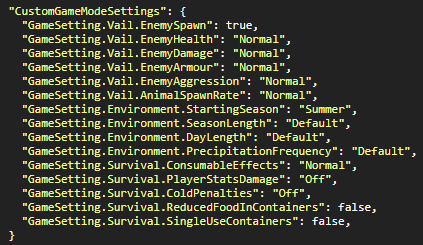
- Once you’re finished, press the
Savebutton at the top and return to the main panel.
Config Explained
The exact settings can be confusing at first, especially if you’re brand new to managing SOTF servers. Due to this, we’ve compiled a description of each option and their respective values in the table below. However, we’ve shortened the name of each one since GameSetting is a universal prefix for them. Use this information to help you make any changes in the dedicatedserver.cfg file.
| Option | Values | Description |
|---|---|---|
| Vail.EnemySpawn | true, false | Toggle if enemies spawn in the server. |
| Vail.EnemyHealth | Low, Normal, High | Change enemy starter health. |
| Vail.EnemyDamage | Low, Normal, High | Change enemy damage. |
| Vail.EnemyArmour | Low, Normal, High | Change enemy armor strength. |
| Vail.EnemyAggression | Low, Normal, High | Change enemy aggression level. |
| Vail.AnimalSpawnRate | Low, Normal, High | Alter the spawn rate of animals. |
| Environment.StartingSeason | Spring, Summer, Autumn, Winter | Set the initial season for your world. |
| Environment.SeasonLength | Short, Default, Long, Realistic | Change the season’s length. |
| Environment.DayLength | Short, Default, Long, Realistic | Change the day’s length. |
| Environment.PrecipitationFrequency | Low, Default, High | Alter the frequency of rain and snow. |
| Survival.ConsumableEffects | Normal, Hard | Toggle if damage is taken on low hydration and fullness. |
| Survival.PlayerStatsDamage | Off, Normal, Hard | Adjust the damage taken from bad / rotten food and drinks. |
| Survival.ColdPenalties | Off, Normal, Hard | Adjust the regeneration of health and stamina from coldness. |
| Survival.ReducedFoodInContainers | true, false | Toggle the reduction of food found in containers. |
| Survival.SingleUseContainers | true, false | Toggle if containers can be opened once. |
Activating Custom Settings For Sons of the Forest
Once you’re satisfied with your custom settings for the SOTF server, the next step is activating them. This process involves you changing difficulties and save slots to successfully use everything in-game. Fortunately, all of this is managed on a convenient page through the panel instead of files. Review the instructions below to begin activating custom settings on your server.
- While on the main server panel, click
Customizationsnear the bottom left corner.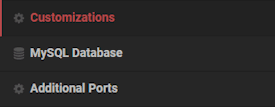
- On the new page, open the
Difficultymenu and selectCustomfrom the list.
- Afterward, choose a new
Save Slotin the same area and return to the panel. - At the top, press the
Restartbutton to begin applying all these changes accordingly.
Gamemode Examples
We’ve taken the liberty of making a few examples showcasing what’s possible with custom settings, as some users might be unsure about what they want. These include a peaceful experience, while the other is for survival challenges. This means they’re polar opposites, as each type will drastically change the gameplay in unique ways. Keep in mind that not all settings are used for these examples, as only a few play important roles in changing the game. We encourage you to read their descriptions below to see what suits you best, then copy and paste their settings accordingly.
Fans of an enjoyable and peaceful experience may want to try these custom settings. When applied, there’ll be no enemies and tons of wildlife around the environment. This also transforms the game into a realistic world, giving new life to seasons, day lengths, and survival tactics.
| Option | Value |
|---|---|
| Vail.EnemySpawn | false |
| Vail.EnemyDamage | Low |
| Vail.AnimalSpawnRate | High |
| Environment.SeasonLength | Realistic |
| Environment.DayLength | Realistic |
| Survival.ConsumableEffects | Hard |
| Survival.PlayerStatsDamage | Hard |
| Survival.ColdPenalties | Hard |
Rather than a peaceful time, players using these custom settings will find themselves in a survival horror experience. When applied, there’ll be lots of strong aggravated enemies for you to overcome. There’s also reduced food in containers and extra challenges to keep in mind while playing.
| Option | Value |
|---|---|
| Vail.EnemySpawn | true |
| Vail.EnemyDamage | High |
| Vail.EnemyHealth | High |
| Vail.EnemyArmour | High |
| Vail.EnemyAggression | High |
| Survival.ConsumableEffects | Hard |
| Survival.PlayerStatsDamage | Hard |
| Survival.ReducedFoodInContainers | true |
Common Issues
In cases where your custom settings aren’t being used on the Sons Of The Forest server, then make sure you’ve configured the Customizations area correctly. Remember, this means you must choose Custom for the Difficulty, along with selecting a new Save Slot. Afterward, restart the server to see if that helps resolve the situation. If nothing changes, then consider turning it offline and redoing the customization process to see if that works. Alternatively, your configuration file may not have been saved properly.
After trying to edit the dedicatedserver.cfg file and some settings reset, this could indicate that its format is broken. In other words, you have an error related to spelling, capitalization, or missing characters. For example, removing quotation marks results in this situation happening. Other times, using “True” instead of “true” can also lead to the problem. We encourage you to revert any changes, which is done by deleting the file and restarting the server. This will regenerate the normal file with all standard settings. Afterward, you can try again to see if that works. However, you may want to Force Stop the server before making any changes too.
Useful Links
Joining a Sons Of The Forest Server
How to Become Admin in Sons Of The Forest
Setting Up a Password on Sons Of The Forest
How to Change Difficulty on a Sons Of The Forest Server





















