


Overview
When playing vanilla Unturned, the included gameplay and maps may exhaust their usefulness. Since Unturned is not procedurally generated, the map is always the same, leaving desires to have a unique experience. Luckily, Unturned has Steam Workshop support, allowing you to use player-created maps and mods to renew your adventures. Installing these workshop maps and mods can be confusing, so we have created this Apex Hosting guide to ease you through the setup process.
Locating Workshop Content
- Navigate to the Unturned Workshop page.
- Open a mod that you plan to install.
- In the URL, locate the
?id=section.
- Make note of the numerical ID number or paste it in a notepad for later.
- Once you have all desired mods saved, you can continue to the next steps.
Locating the Automatic Downloader
- Navigate to the Apex Server panel, then stop your server.
- Proceed to the
FTP File Accesson the left-hand side, then log in. - Locate and enter the
Serversfolder, then open the folder with a globe symbol.
- Find the
WorkshopDownloadConfig.jsonfile, then pressEditto the far-right.
Configuring the Downloader
- Once the file is open, locate the
File_IDssection.
- In-between the white brackets, use
Enterto put a space for each mod you add.
- On each blank line you added, paste in each mod ID from earlier.
- Place a comma at the end of each ID number, except for the last one.
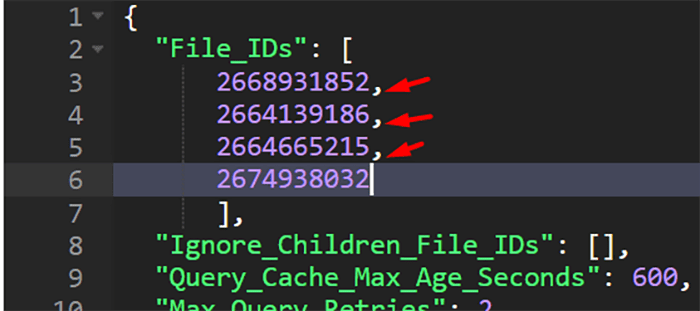
- Press
Saveonce complete, then restart the server.
The server should now begin downloading each of the server mods upon startup!
Manual Mod Installation
When using mods from the official Steam Workshop, we highly recommend using the automatic downloader. However if there are mod or map files from another source, they can be manually added as well.
- Proceed to the FTP File Access, then log in.
- Continue to the
Serversfolder, select your world folder, then enter theWorkshopfolder. - Depending on your mod, either proceed to the
Mapsfolder orContentfor other mods.
- Press
Uploadin the top-left, then drag + drop the mod file. - Once complete, restart the server to load up the mods.
Loading Modded Maps
- Proceed to the FTP File Access, then log in.
- Continue to Servers > [Your World Name].
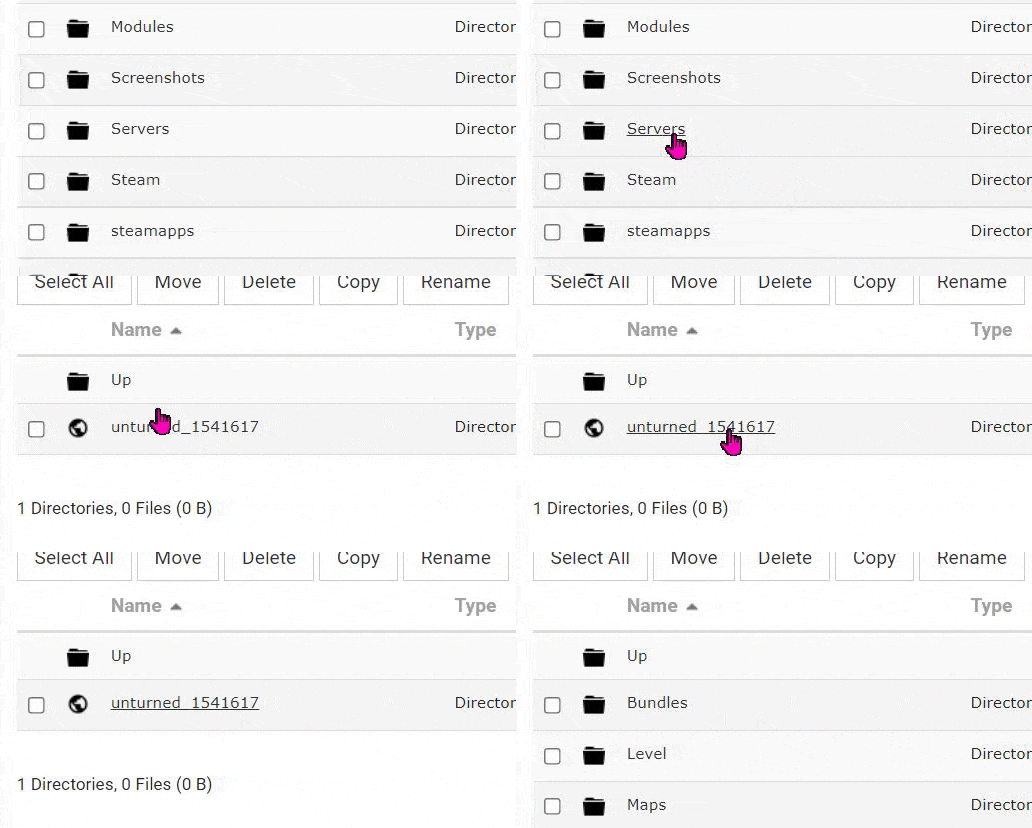
- From here, navigate to Workshop > Steam > Content > 304930.

- Open the folder with your map’s Steam ID.
- Here should be a file named
map.metaand a folder. Copy the folder name.
- Return to the main panel page, then navigate to the
Config Files. - Open the commands.dat file, then enter the following:
- Replace [MapName] with the copied folder name, then save.

- Restart the server to load up the custom map!
map [MapName]
Common Issues
The mods aren’t installing:
If the mods are not installed, we recommend checking the console during startup for errors. Sometimes, mods will be outdated due to previous Unturned updates and cannot install. If this occurs, we recommend either trying to redownload or find an alternative until updates are available.
The custom map is not loading:
If a custom map is not showing up, we recommend checking the Commands.dat file to ensure it is formatted properly. Otherwise, access the “Customizations” tab on the panel, then try setting the map name to be blank in the dropdown. Once done, check the Commands.dat once more and restart.
The server is crashing:
If the server is crashing, it is often caused by a loaded custom map. If you are unsure, try to unload the custom map and try again. Otherwise, if you have manually installed maps or mods, try to remove those as well. Once done, try to launch the server once more.





















